A beginner step-by-step for downloading free SVGs, extracting ZIP files, and importing the right file into Cricut Design Space without weird cut lines or upl...
Maker Vinyl
Updated October 17, 2026
Organize Your Free SVG Files
Stop losing your favorite cut files. Learn a simple folder structure, naming system, tags, and preview tricks to organize free SVGs, fonts, and craft resources on PC or Mac for Cricut projects.

Harper Davis
Harper Davis is a lifelong DIY enthusiast and cutting-machine expert who loves helping beginners conquer Cricut Design Space. With over six years of experience running a custom vinyl shop, she shares practical tutorials, material guides, and creative inspiration.
I have a confession: I used to save free SVGs like a craft hoarder squirrels away acorns. “I will totally remember where I put that adorable sunflower monogram.” Spoiler: I did not. Then I would buy the same design twice, or worse, waste vinyl testing the wrong file because I could not find the one I actually meant to cut.
If your downloads folder is basically a black hole filled with “(1)” and “final_FINAL” files, you are in the right place. This guide walks you through a clean, beginner-friendly system for organizing your free SVG files and craft resources on PC or Mac, with folder structures you can copy, naming rules you will actually stick to, and easy preview tricks so you can see what you have before you import into Cricut Design Space.
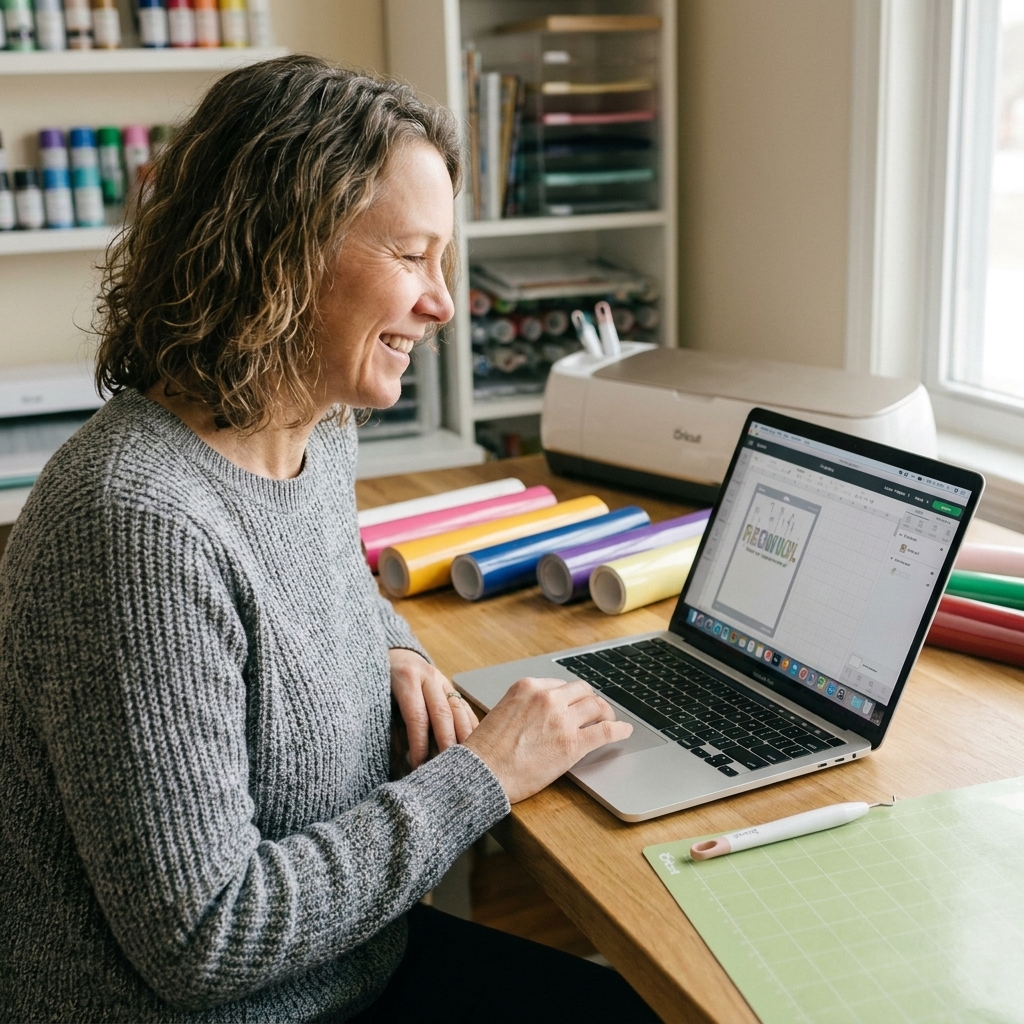
Start with a quick cleanup
Before you build your new system, take 15 minutes to do a fast triage. The goal is not perfection. The goal is getting everything into one place so you are not organizing in five different corners of your computer.
Step 1: Pick one home base
Choose a single folder that will become your master library. Put it somewhere you will not accidentally delete it, like:
- Windows: Documents
- Mac: Documents
- Cloud option: iCloud Drive, OneDrive, or Dropbox (more on this below)
Name it something obvious like Craft Library or SVG Library.
Step 2: Gather your downloads
- Search your computer for .svg, .png, .dxf, .pdf, and .zip.
- Move everything into a temporary folder called 00 - Inbox (To Sort) inside your Craft Library.
- If you have a ton of zip files, keep them zipped for now. We will handle those with a simple rule.
If you have never searched by file type before, here is the quick translation:
- Windows: In File Explorer search, try ext:svg (or ext:png, ext:dxf, etc.).
- Mac: In Finder search, use the filter for Kind (like “Image”) or set a rule like “Name ends with .svg.”
My rule: If I cannot find it in under 20 seconds, it is not organized yet.
A folder structure that makes sense
The best folder system is the one you will actually use. I recommend organizing by project type first, then by theme or holiday, then by file format if you need it.
My master folder structure
Create this inside your Craft Library:
- 00 - Inbox (To Sort)
- 01 - SVGs (Cut Files)
- 02 - Print Then Cut (PNG, JPG)
- 03 - Fonts
- 04 - Sublimation (PNG, color profile notes)
- 05 - Laser (SVG, DXF, LightBurn)
- 06 - Reference (Sizing charts, cheat sheets)
- 07 - Bundles (Original Downloads)
- 99 - Archive (Old, duplicates, maybe-later)
If you use LightBurn, this is also a great place to keep your LightBurn project files (.lbrn2) so your actual “working files” live with the design.
Inside 01 - SVGs (Cut Files), add subfolders like:
- Basics: shapes, banners, frames, arrows
- Text + Quotes
- Monograms
- Kids + Baby
- Sports + School
- Wedding + Events
- Holidays: Christmas, Halloween, Easter, etc.
- Seasons: Summer, Fall, Winter, Spring
- Animals
- Floral + Nature
- Occupation + Hobbies
How to name SVG files
Your folders do the big organizing. Your file names handle the fine details, like size, style, and what it is actually for. A good file name also prevents the dreaded “Which one is the layered version?” moment.
A simple naming formula
theme_subject_style_process
Examples you can copy:
- fall_pumpkin_layered_HTV.svg
- baby_onesie_milestone_round_PTC.png
- teacher_crayon_monogram_vinyl.svg
- christmas_gnome_offset_sticker_PTC.png
- wedding_lastname_est2026_singlelayer_vinyl.svg
My no-chaos rules
- Use underscores or dashes, not spaces.
- Avoid “final” or “new” in file names. Those stop meaning anything after day two.
- Add layered or singlelayer when it matters.
- Add the intended process: HTV, vinyl, PTC (Print Then Cut), sublimation.
- If you resize designs for a specific blank, add it: 3in, 4in, 20oz_tumbler.
- If you edit a file, do not overwrite the original. Add _EDITED (or keep an Edits subfolder).
Zip files: keep or unzip?
Free SVG bundles often come as zip files stuffed with SVG, PNG, DXF, and sometimes a license file. Here is the simplest approach that keeps you sane.
The rule I use
- If it is a single design: unzip it, rename the files, and file them where they belong.
- If it is a big bundle (20+ designs): keep the original zip in 07 - Bundles (Original Downloads), and unzip a copy into your library when you actually need it.
This way you always have the original download intact (helpful if something gets corrupted), but your everyday library stays searchable and usable.
One more sanity saver: do not try to upload files into Design Space directly from inside a zip. Unzip first, then upload the actual SVG or PNG.
Also, if your Craft Library lives in cloud storage, make sure the zip and the unzipped files are actually stored on your computer (not “online-only”) before you try to open or upload them.
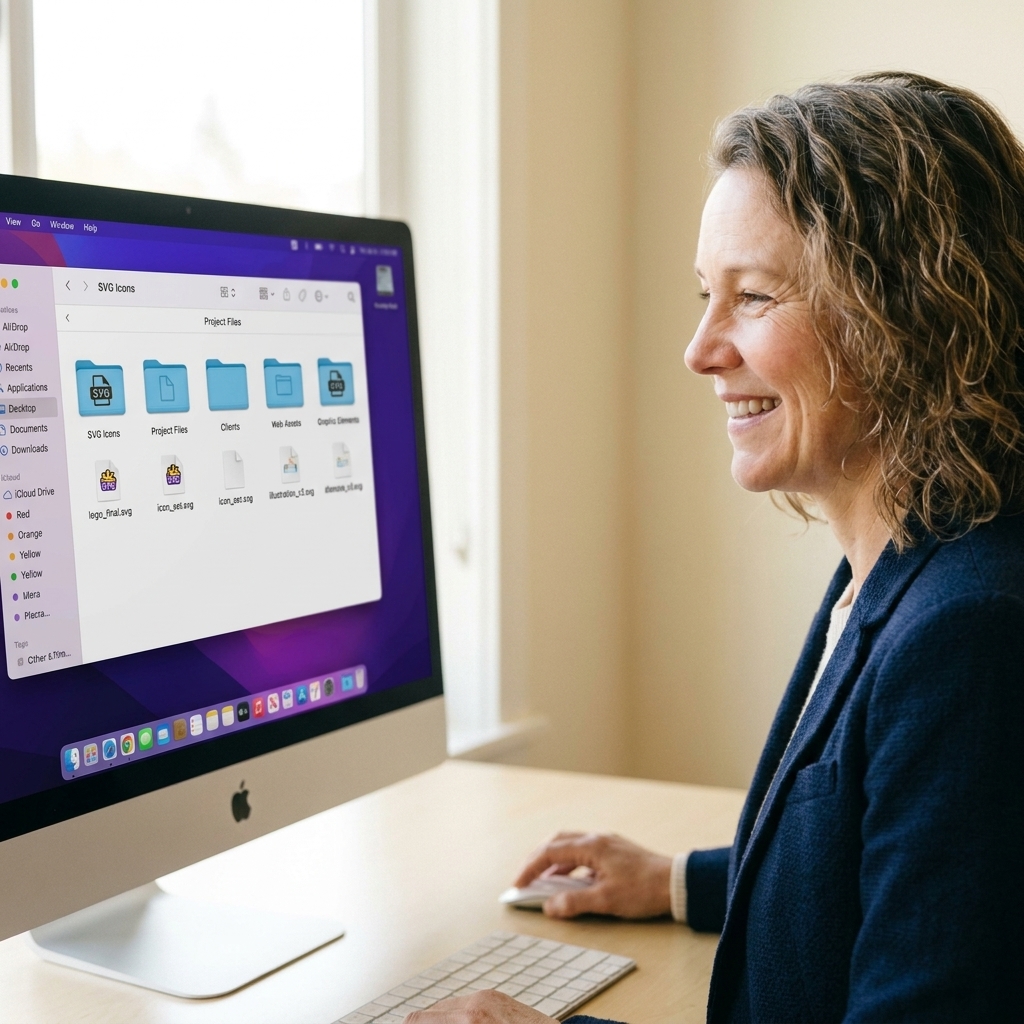
Preview your SVGs
One of the biggest frustrations with SVG collecting is that you cannot always see the design just by browsing files. Good previews are a game changer.
Windows preview options
- File Explorer Preview pane: Turn on the Preview pane and try it first. Some setups preview SVGs, some do not.
- Check your thumbnail settings: If PNG thumbnails are not showing, make sure Explorer is set to show thumbnails (not icons only) and consider rebuilding the thumbnail cache.
- Use a thumbnail helper app: Many crafters install an SVG thumbnail extension so Explorer shows previews. If you go this route, stick with well-reviewed software and download from the official source.
- My low-tech trick: Save a PNG preview image alongside the SVG (more below). Windows usually previews PNGs well once thumbnails are enabled, but if previews get weird, it is often an Explorer setting or thumbnail cache issue.
Mac preview options
- Quick Look: Select a file and press Spacebar. Macs can often preview SVGs in Quick Look depending on your macOS version and how the SVG is built.
- Finder views: Increase icon size and use Gallery view to scan quickly.
- Same low-tech trick: Keep a PNG preview next to the SVG if Quick Look is not cooperating.
Create your own previews
For any SVG you love and use often, keep a matching PNG preview:
- Export a PNG from your design source if you have it.
- Or open the SVG in a vector program (Inkscape is a common free option) and export a PNG.
- Name it the same as the SVG.
Example:
- fall_pumpkin_layered_HTV.svg
- fall_pumpkin_layered_HTV.png
Now your folder becomes scrollable like a little design catalog.
Tagging and searching
Folders and names get you 80 percent there. Tags get you the last 20 percent, especially when one design fits multiple categories (like a pumpkin that is also farmhouse style and also for Thanksgiving).
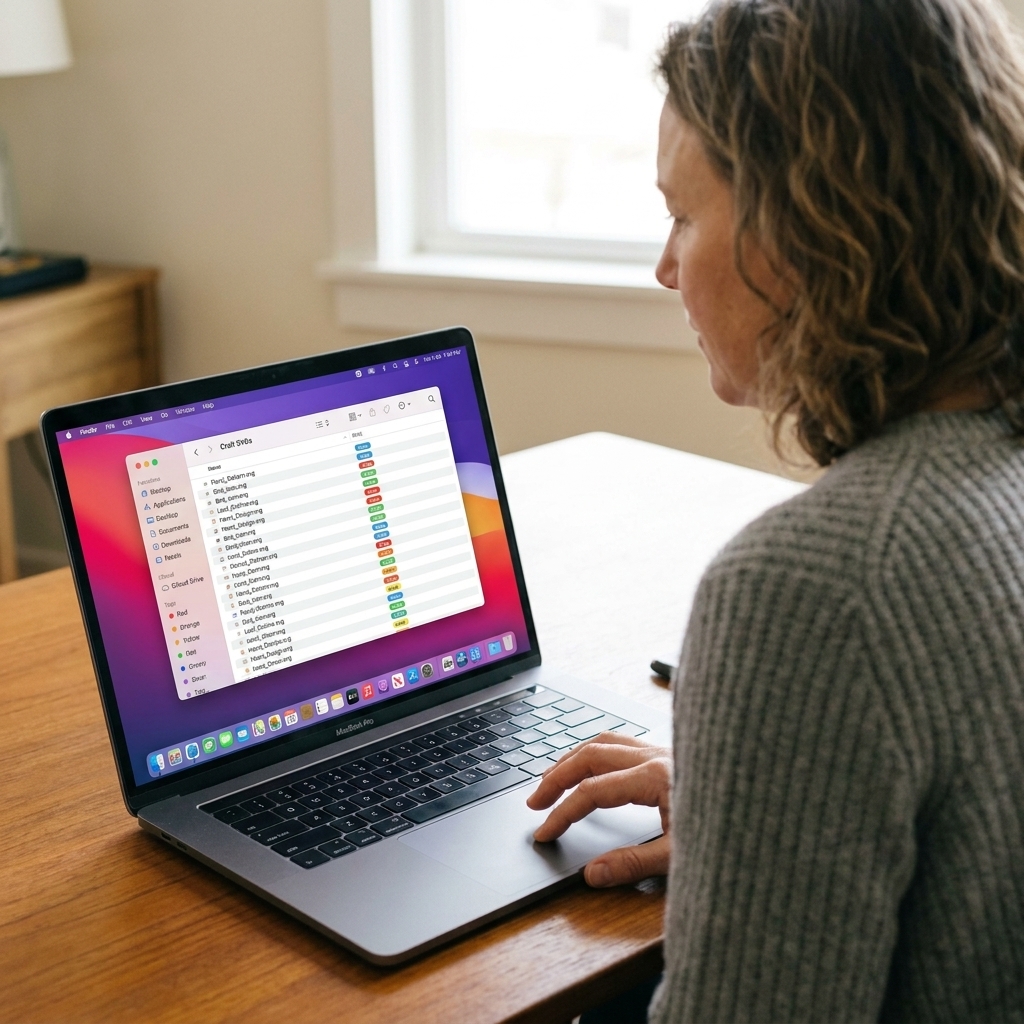
Use tags on Mac (Finder)
Mac Finder tags are honestly a crafter’s best friend.
- Create tags like: layered, singlelayer, sticker, tumbler, kids, farmhouse, small-cut.
- Apply tags to your most-used designs so you can pull them up instantly.
- Search by tag when you are in a hurry.
Windows options (simple alternatives)
Windows file tagging is a bit more limited depending on file type. In particular, File Explorer “Tags” or “Keywords” metadata is not consistently supported for common craft files like SVG and PNG, so folders and file name keywords are the most reliable option.
- Add keywords to file names: farmhouse, retro, boho, mini, no-weeding.
- Use saved searches or Quick Access: Search for a keyword like “teacher” inside your SVG folder, then save that search if your Windows version offers it, or pin the folder you search most to Quick Access.
- Use a spreadsheet index (optional but powerful): keep a simple list of file name, location, theme, and notes. This is amazing for giant libraries.
Fonts and license notes
Fonts are the sneaky clutter category. You download a cute script, install it, and then six months later you cannot remember what it was called or whether you can sell items made with it.
Folder structure for fonts
- Fonts - To Install
- Fonts - Installed (Keep Files)
- Fonts - Commercial Use OK
- Fonts - Personal Use Only
Even if you install a font, keep the original file saved. If you ever switch computers, you will thank past-you.
Save licenses like they are part of the design
Any time a download includes a license or terms of use:
- Keep it in the same folder as the file, or
- Move it to a Licenses subfolder inside that design’s folder.
If you sell finished goods, this habit protects you. If you only craft for personal use, it still saves you from second-guessing.
Cloud sync and backups
I have seen too many crafters lose years of files when a laptop dies. Your SVG library is worth protecting, especially if it is full of customized files you tweaked for your favorite blanks.
The easiest safe setup
- Primary library: Craft Library folder on your computer
- Cloud sync: OneDrive (Windows), iCloud Drive (Mac), or Dropbox
- Offline backup: an external hard drive you plug in once a month
If you use cloud sync, make sure your Craft Library is set to be available offline before a craft weekend. Also, watch for sync conflicts. If you see duplicate files with names like “(conflicted copy),” move them into 99 - Archive until you confirm which version is the real one.
Design Space storage basics
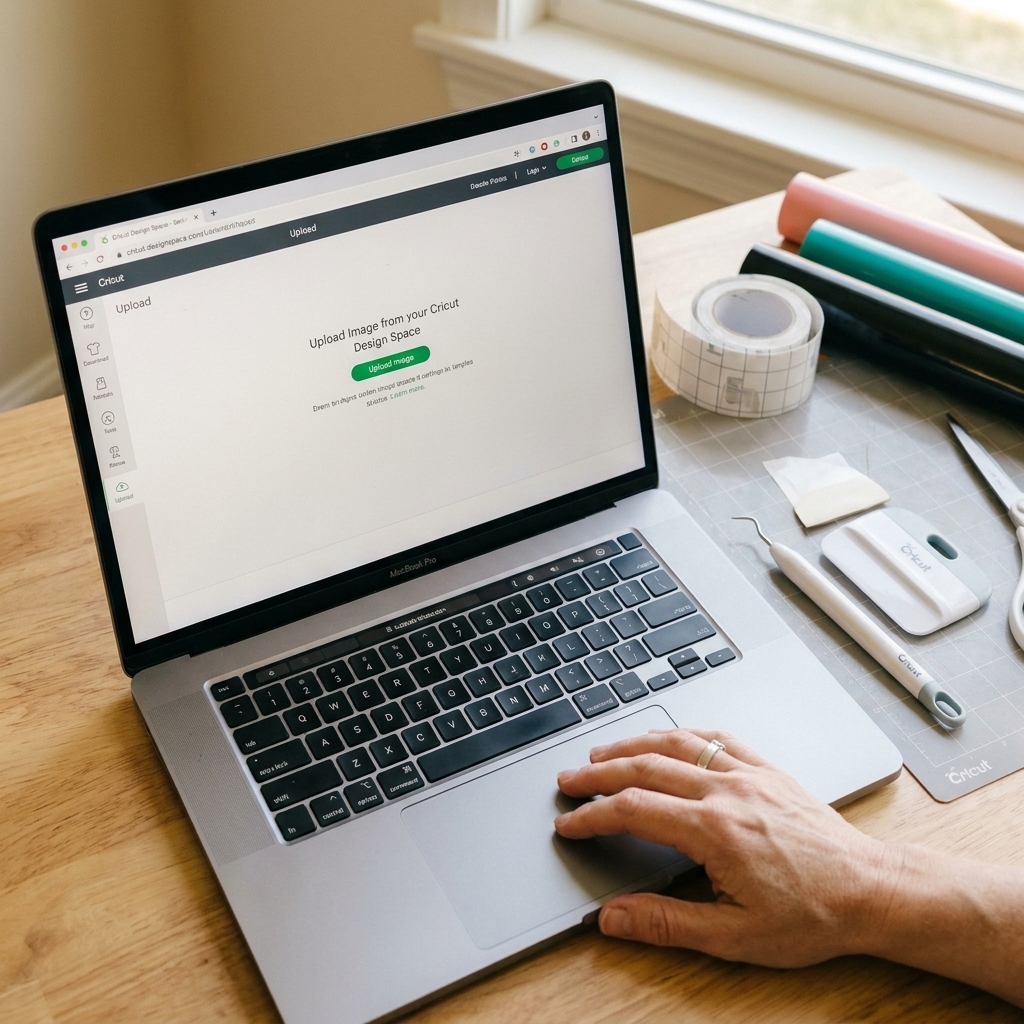
This one trips up beginners, so let’s make it plain: when you upload an SVG into Cricut Design Space, you are importing it into Design Space for use in projects. That does not automatically organize your computer files for you.
- Your Craft Library folders: the original files you downloaded and organized on your PC or Mac.
- Design Space uploads and projects: your items and projects saved inside Design Space (tied to your Cricut account).
That is why having a real folder system matters. Design Space is where you make the project. Your computer is where you keep your file library tidy.
One more practical tip: if your files live in OneDrive or iCloud Drive, make sure the file is downloaded locally (not just a cloud placeholder) before you upload it into Design Space. Uploads can fail if the file is not actually on your device.
My Sunday reset
This is the little habit that keeps everything from turning into a disaster again.
- Open 00 - Inbox (To Sort)
- Unzip new downloads you used this week
- Rename them using your formula
- File them into the right folders
- Delete true duplicates
- Move “maybe someday” stuff into 99 - Archive
That is it. Ten minutes. A clean brain. A happier cutting machine relationship.
FAQs
What if I already have thousands of SVGs?
Start with broad categories only. Make your top-level folders, dump everything into 00 - Inbox (To Sort), then sort in chunks. I like doing 100 files at a time while I am waiting for my machine to finish a cut.
Should I organize by designer or by theme?
If you mostly grab freebies from lots of places, organize by theme. If you buy bundles from specific designers and want to keep their files together with licenses, organize by designer inside your theme folders, or keep those original downloads together in 07 - Bundles (Original Downloads).
How do I avoid importing the wrong file into Design Space?
Two tips that save vinyl:
- Keep a PNG preview next to the SVG so you can visually confirm it.
- Add process keywords to names like HTV, vinyl, or PTC.
What file types should I keep?
For Cricut crafts, I keep:
- SVG: best for cut files
- PNG: best for Print Then Cut and previews
- DXF: sometimes useful for compatibility, but it can lose layers or some design details compared with SVG
- PDF: instructions, assembly guides, printables
If storage is an issue, keep SVG and PNG first. Those cover most day-to-day crafting.
Folder blueprint
If you just want a quick copyable plan, start here:
- Craft Library
- 00 - Inbox (To Sort)
- 01 - SVGs (Cut Files)
- Holidays
- Seasons
- Text + Quotes
- Monograms
- Kids + Baby
- Floral + Nature
- 02 - Print Then Cut (PNG, JPG)
- 03 - Fonts
- 04 - Sublimation (PNG, color profile notes)
- 06 - Reference
- 07 - Bundles (Original Downloads)
- 99 - Archive
Once you set this up, future-you is going to feel like she just walked into a perfectly organized craft store aisle. And you will spend a lot less time hunting files and a lot more time actually making the cute stuff.