A beginner step-by-step for downloading free SVGs, extracting ZIP files, and importing the right file into Cricut Design Space without weird cut lines or upl...
Maker Vinyl
Updated October 17, 2026
SVG vs PNG vs DXF for Cricut
Trying to cut free files in Cricut Design Space? Learn the difference between SVG, PNG, and DXF, plus which one to choose for vinyl, HTV, and Print Then Cut stickers.

Harper Davis
Harper Davis is a lifelong DIY enthusiast and cutting-machine expert who loves helping beginners conquer Cricut Design Space. With over six years of experience running a custom vinyl shop, she shares practical tutorials, material guides, and creative inspiration.
If you have ever downloaded a “free cut file” and ended up with a blurry mess, a single black box, or a design that will not ungroup, you are not alone. File types matter in Cricut Design Space, and the best choice depends on whether you are cutting vinyl or printing stickers.
Here is the simple version I wish someone had taped to my machine back when I was wasting my last scrap of glitter HTV: SVG is usually best for cutting, PNG is best for Print Then Cut, and DXF is the backup option when SVG is not available or you are dealing with older file libraries.
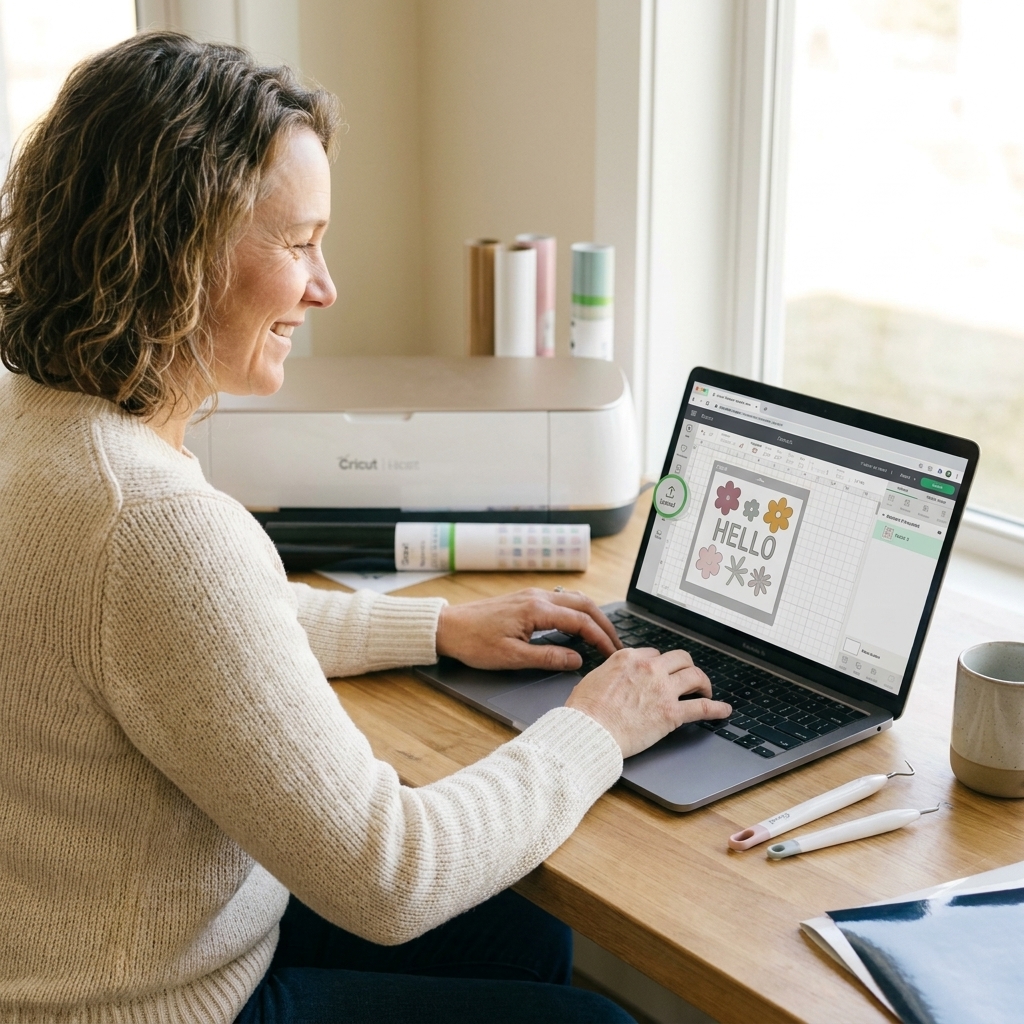
Quick answer: which free file type should you download?
- Cutting vinyl or HTV: Choose SVG first.
- Making stickers or printable labels (Print Then Cut): Choose PNG first.
- Only have a DXF option: Use DXF, but expect a little extra cleanup.
Now let’s break down what each file actually is, what Cricut Design Space does with it, and when it will save you time and materials.
SVG files: the Cricut-friendly cut file
SVG stands for Scalable Vector Graphics. “Vector” is the magic word here. Instead of being made of tiny squares (pixels), an SVG is made of paths and points. That means it can scale up or down without getting blurry, and Design Space can read those cut lines cleanly.
Why SVG is best for vinyl and HTV
- Crisp cut lines: Your blade follows the paths, so curves look smooth and text stays sharp.
- Great for layering: Many well-made SVGs import with layers separated (or at least grouped logically), which makes multi-color projects way easier.
- Easy edits: You can change sizes, weld, slice, contour, and reposition without losing quality.
- Great for small details: Thin script and tiny accents cut more reliably because the lines are defined.
When someone says “free SVG for Cricut,” this is usually what they mean: a ready-to-cut design that behaves the way you expect once you upload it.
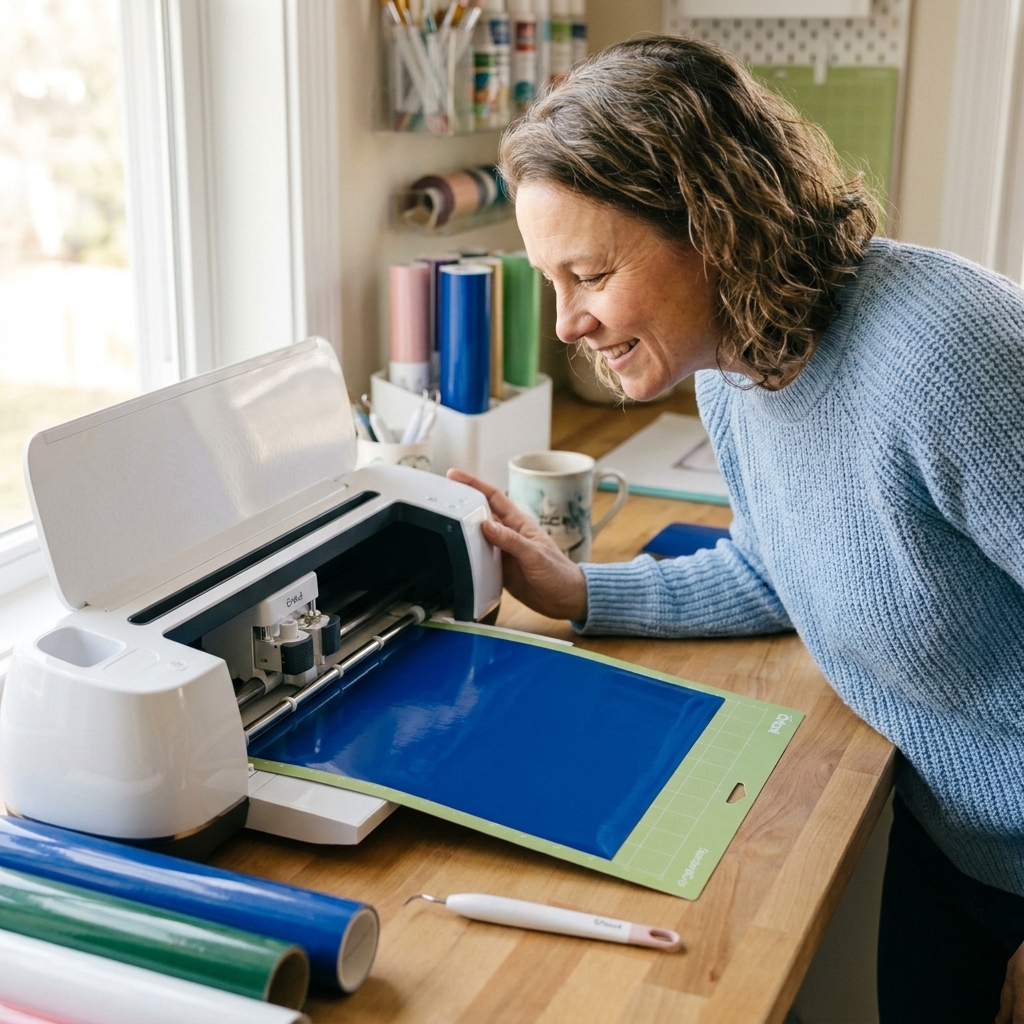
PNG files: the sticker and printable favorite
PNG is a raster image file. That means it is made of pixels, like a photo. PNGs can look super clean, and they often have a transparent background, which is why crafters love them for stickers.
When PNG is the right choice
- Print Then Cut projects: Stickers, printable vinyl decals, planner stickers, and labels.
- Artwork with shading or watercolor effects: Think watercolor florals, hand-painted textures, or a full-color logo that is meant to be printed, not cut from solid-color vinyl.
- Simple shapes you are okay converting: You can turn a clean PNG into cut lines, but results depend on the image quality.
PNG resolution that actually works
“High resolution” can be vague, so here is a practical rule of thumb: aim for 300 DPI at the size you plan to print. If the file does not list DPI, look at pixel size. For most sticker-style designs, I try to start with something that is at least 1500 to 2000 pixels on the long side, and bigger is better if you plan to resize up.
The big PNG gotcha in Design Space
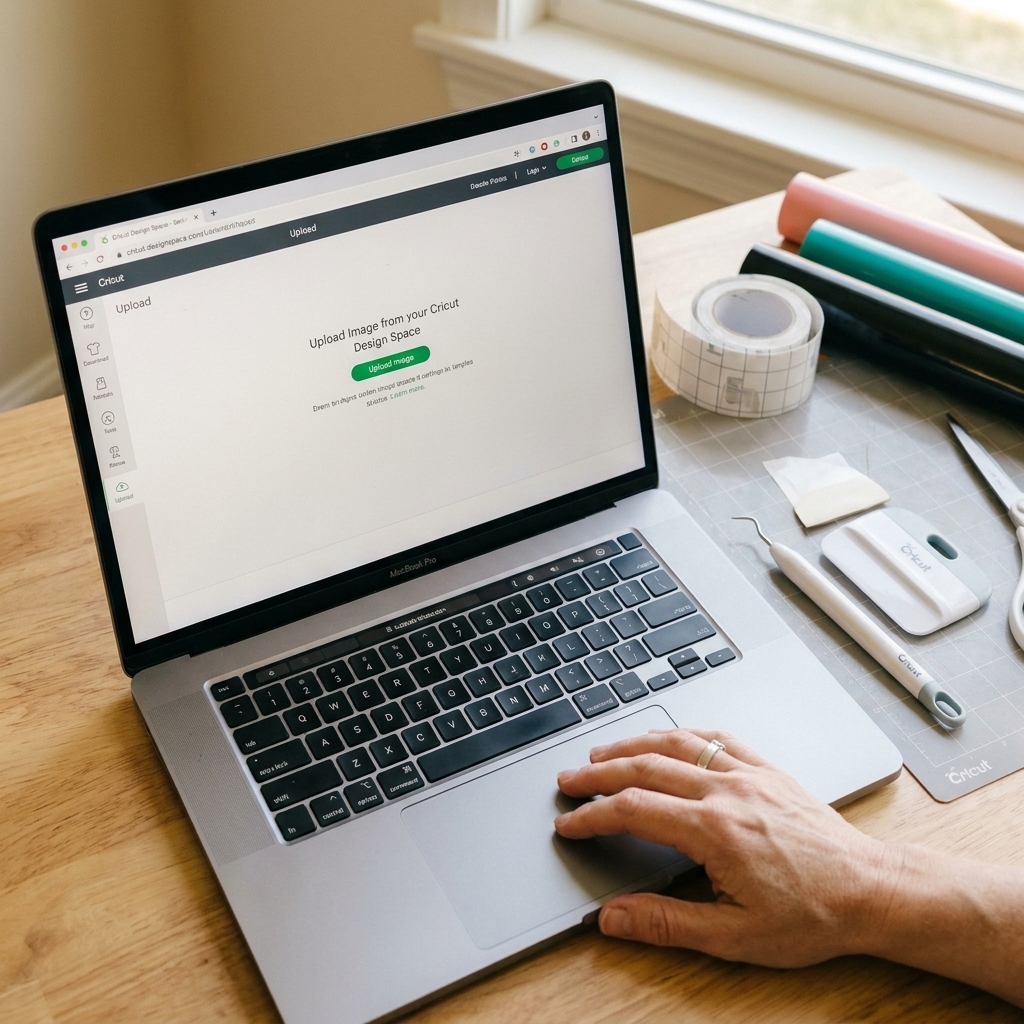
If you upload a PNG for a vinyl project, Design Space has to turn pixels into a cut shape. That happens during the upload process when you pick an image type (Simple, Moderately Complex, Complex) and clean up the background. You are basically telling Design Space what should be a cut line.
This is where you can get:
- Jagged edges on curves or text
- Extra cut speckles around the design
- A project that is set to Print when you meant Basic Cut, or the other way around (this is usually an Operation setting fix)
My rule: If you want the Cricut to cut pieces of vinyl, choose SVG. If you want your printer to do the color work, choose PNG.
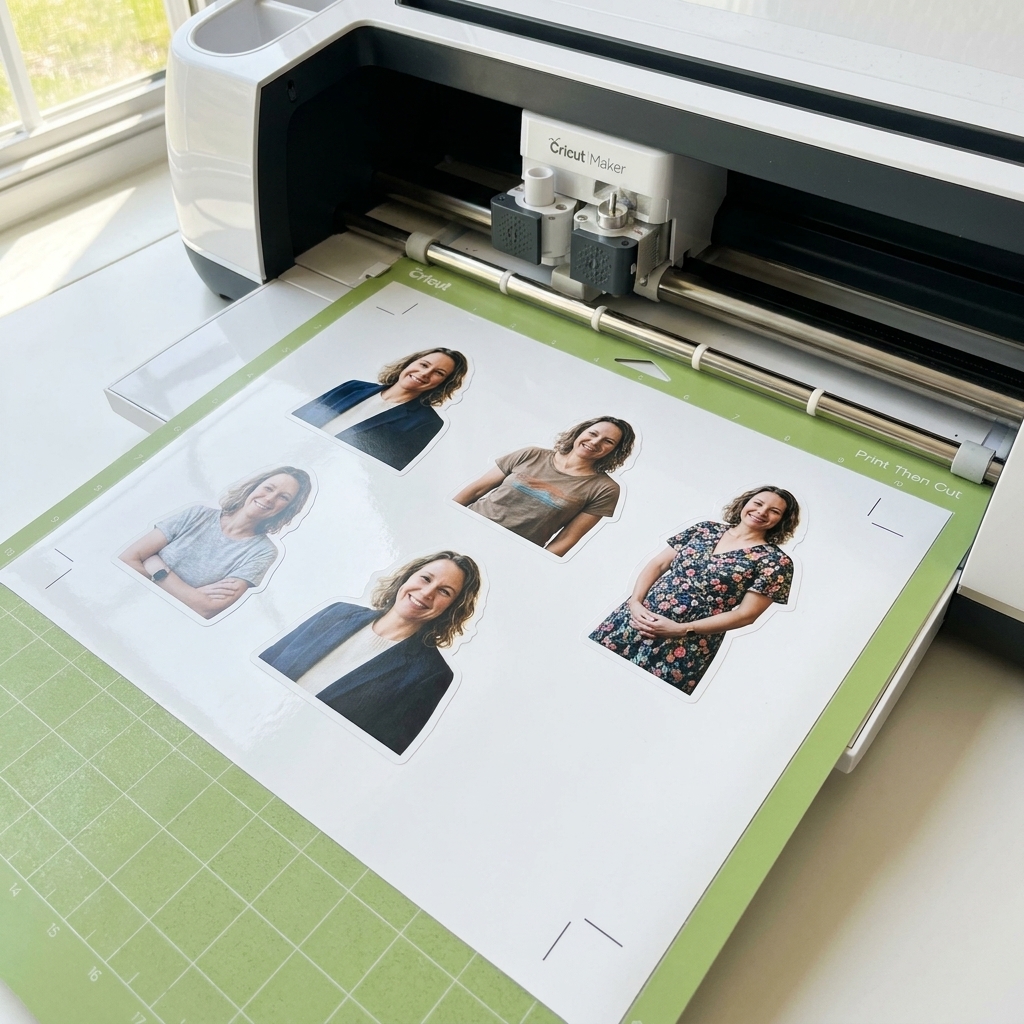
DXF files: workable, but not my first pick
DXF is Autodesk’s Drawing eXchange format, another vector-based file type often used in CAD software. Cricut Design Space can import DXF files, and they can cut well, but they tend to arrive with fewer “nice-to-haves” for crafters.
When DXF is helpful
- You cannot get an SVG: Some free file sites offer DXF as the “vector” option.
- Simple shapes and basic outlines: Think names, silhouettes, and uncomplicated decals.
- Older design libraries: DXF has been around forever and shows up in a lot of older cut file bundles.
Common DXF frustrations in Design Space
- Layers may not import cleanly: Colors and groups are often lost, so you may need to re-separate pieces.
- Text usually comes in as shapes: Great for cutting, not great if you wanted to edit the font.
- Extra lines or open paths: Sometimes you will see random cuts or shapes that do not weld the way you expect.
If DXF is what you have, you can absolutely make it work. Just plan for a few minutes of cleanup before you hit “Make It.”
Best file type by project (vinyl, HTV, stickers)
Permanent vinyl decals
- Best: SVG
- Okay: DXF (simple designs)
- Use with caution: PNG (only if you are comfortable cleaning up cut lines)
HTV shirts and onesies
- Best: SVG
- Okay: DXF
- Usually not: PNG (unless you are doing printable HTV and a Print Then Cut style workflow, or printing a full sheet and pressing)
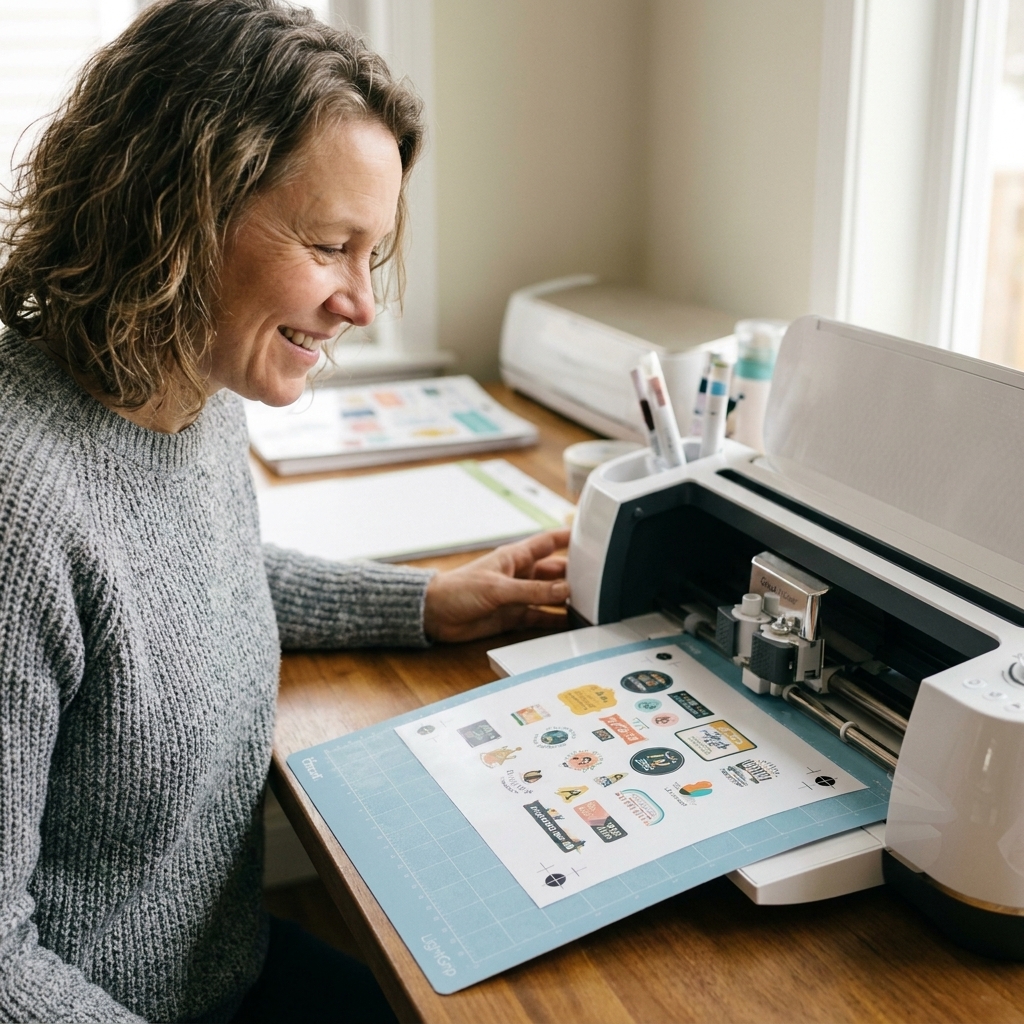
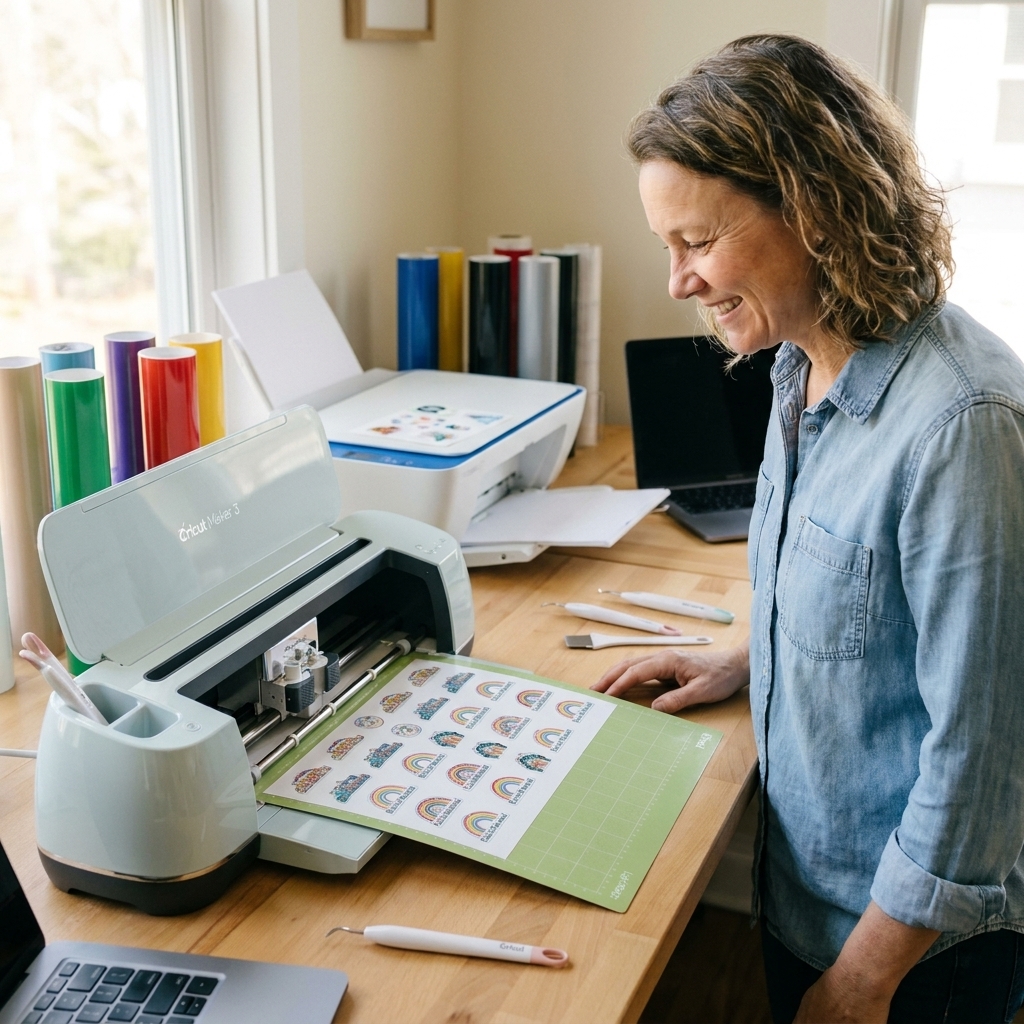
Stickers (Print Then Cut)
- Best: PNG (high resolution, transparent background)
- Also great: SVG (for simple, flat-color stickers or when you want super crisp cut lines)
- Not typical: DXF
Layered vinyl designs
- Best: SVG (layers often come in organized)
- Okay: DXF (expect to regroup and attach pieces yourself)
How to spot a good free file before you download
Not all “free SVGs” are created equal. A file can be the right format and still cut terribly if it was auto-traced or exported wrong. Here is what I look for:
- SVG preview looks clean: Smooth curves, no bumpy edges.
- Design is built from shapes: Not a blurry bitmap jammed into an SVG wrapper.
- Layers are logical: If it is a multi-color design, you should see separated elements (or at least sensible grouping).
- Fine details match your material: Tiny flourishes might weed poorly on cheap vinyl.
If a design looks fuzzy in the preview image or the edges look “crumbly,” it is usually a sign you will fight it in Design Space.
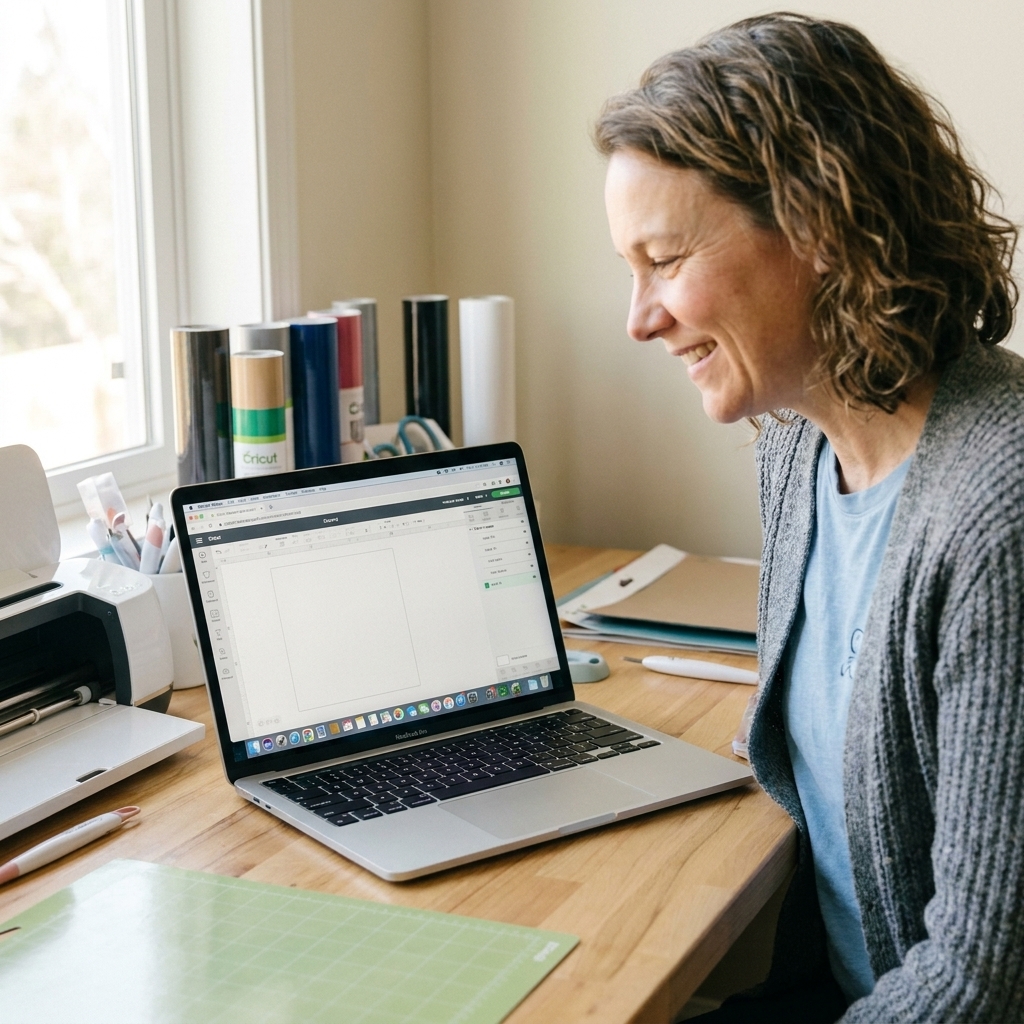
Design Space tips: choosing the right upload option
Uploading SVG
SVG usually imports as cuttable shapes right away. After you add it to your canvas:
- Check the Layers panel for grouped pieces.
- Ungroup if you need to recolor or separate layers.
- Set each layer to the correct Operation (Basic Cut is most common for vinyl).
Uploading PNG
For stickers and printable projects:
- Start with a high resolution PNG when possible.
- After you add it to the canvas, set Operation to Print Then Cut (Print).
- If you are trying to cut it, use the background removal tools carefully. Zoom way in and clean the edges so you do not cut fuzzies.
Uploading DXF
After import:
- Zoom in and look for double lines or stray cut paths.
- Use Weld or Union where needed to avoid cutting outlines separately.
- If pieces must stay together, use Attach before you Make It.
One more Print Then Cut tip: Flatten vs Attach
This trips up a lot of people. If you are making a sticker and you want the Cricut to cut around the printed design, select the design and its background shape and use Flatten. Flatten tells Design Space: “Print this as one piece, then cut the outer edge.”
Attach is different. Attach holds your layout in place on the mat, but it does not turn multiple layers into a single printable image.
FAQ
Can Cricut cut a PNG?
Yes, but Cricut Design Space has to convert the pixels into cut lines based on your upload choices and cleanup. For clean shapes it can work, but text and detailed artwork often turns jagged. If you are cutting vinyl, an SVG will usually cut cleaner.
Why does my PNG upload as a solid rectangle?
That typically happens when the file has no transparency and the background is not removed, so Design Space treats the whole image area as the shape. Remove the background during upload, or start with a PNG that already has a transparent background.
Why is my “SVG” acting weird in Design Space?
Some files labeled SVG are actually bitmap images that were auto-traced or wrapped into an SVG container. If you see rough edges, thousands of tiny nodes, or everything imports as one messy layer, it is probably a low-quality trace. Grab a different SVG if you can.
Is DXF as good as SVG for Cricut?
DXF can cut well, but it often imports with less organization and more cleanup compared to a well-made SVG. I treat DXF as a solid backup format, not my first choice.
What about JPG files?
JPG is a raster image like PNG, but it usually has a background (no transparency) and compression can make edges look fuzzy. For Print Then Cut, PNG is typically easier to work with.
What about EPS or PDF files?
This is a common one in free bundles. Design Space does not reliably support EPS as a direct upload for most users, and PDF support can be inconsistent depending on the version and the file. If a bundle includes EPS or PDF plus an SVG, grab the SVG. If it only includes EPS or PDF, you will usually need to convert it to SVG or PNG using another program before Design Space will behave.
My go-to rule (so you do not waste vinyl)
If you want the Cricut to do the work, choose SVG. If you want the printer to do the work, choose PNG. If DXF is the only vector option, use it and give yourself a couple minutes to tidy up before cutting.
And if you ever feel like you are “bad at Design Space,” I promise you, half the battle is just starting with the right file type. You have got this.