A beginner-friendly breakdown of Cricut Maker 3, Explore 3, and Joy: key specs, what each one cuts best, connectivity basics, ongoing costs, and which to pic...
Maker Vinyl
Updated October 17, 2026
Fix Cricut Bluetooth Problems on Mac and Windows
Step-by-step fixes for Cricut Bluetooth pairing and random disconnects on Mac, Windows, iOS, and Android. Covers pairing, permissions, interference, and mid-cut dropouts.

Harper Davis
Harper Davis is a lifelong DIY enthusiast and cutting-machine expert who loves helping beginners conquer Cricut Design Space. With over six years of experience running a custom vinyl shop, she shares practical tutorials, material guides, and creative inspiration.
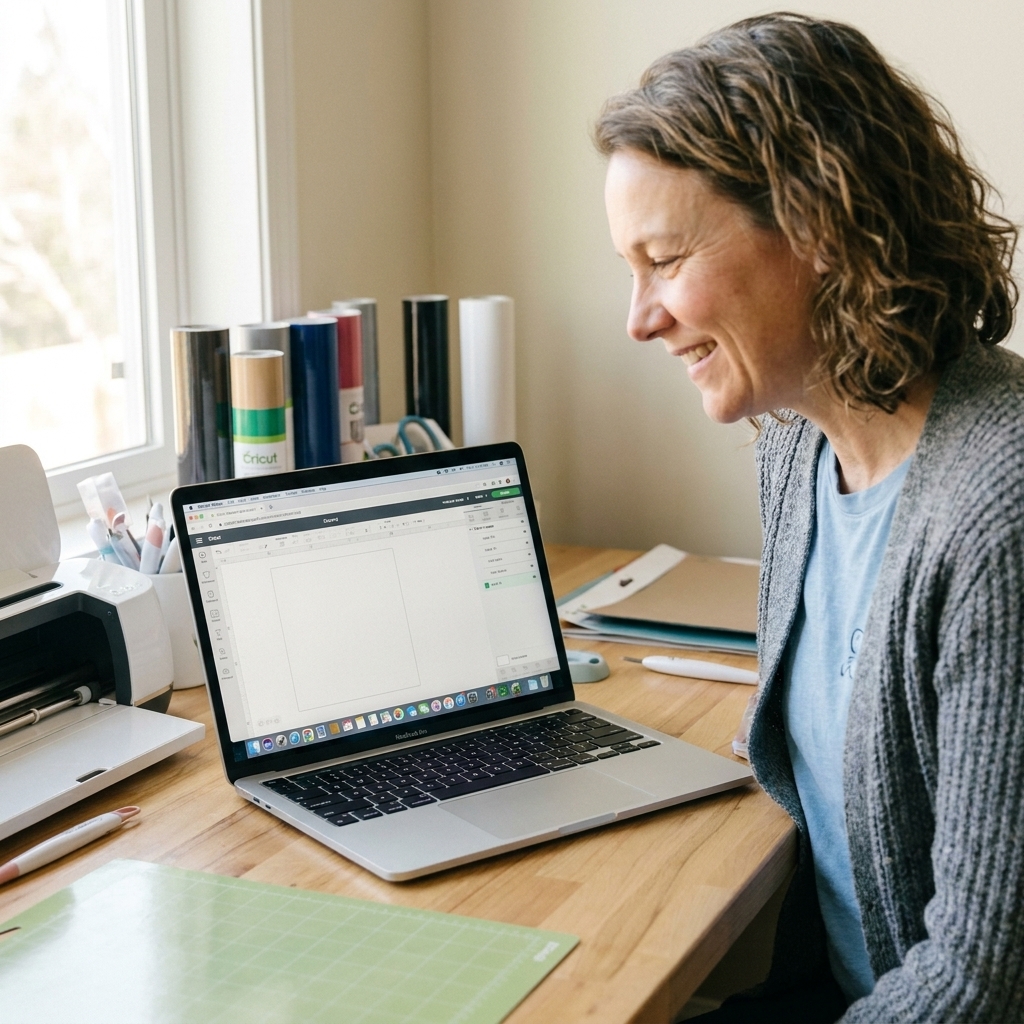
If your Cricut will not pair, keeps vanishing from Bluetooth, or drops connection mid-cut, you are not alone. Bluetooth is convenient, but it is also picky. The good news is that most issues come down to a few repeat offenders: old pairings, permission settings, interference (hello, 2.4 GHz congestion), and Design Space getting stuck in a weird state.
I am going to walk you through the fixes in the exact order I use in my vinyl shop when a machine decides to be dramatic. Start at the top and stop when it works.
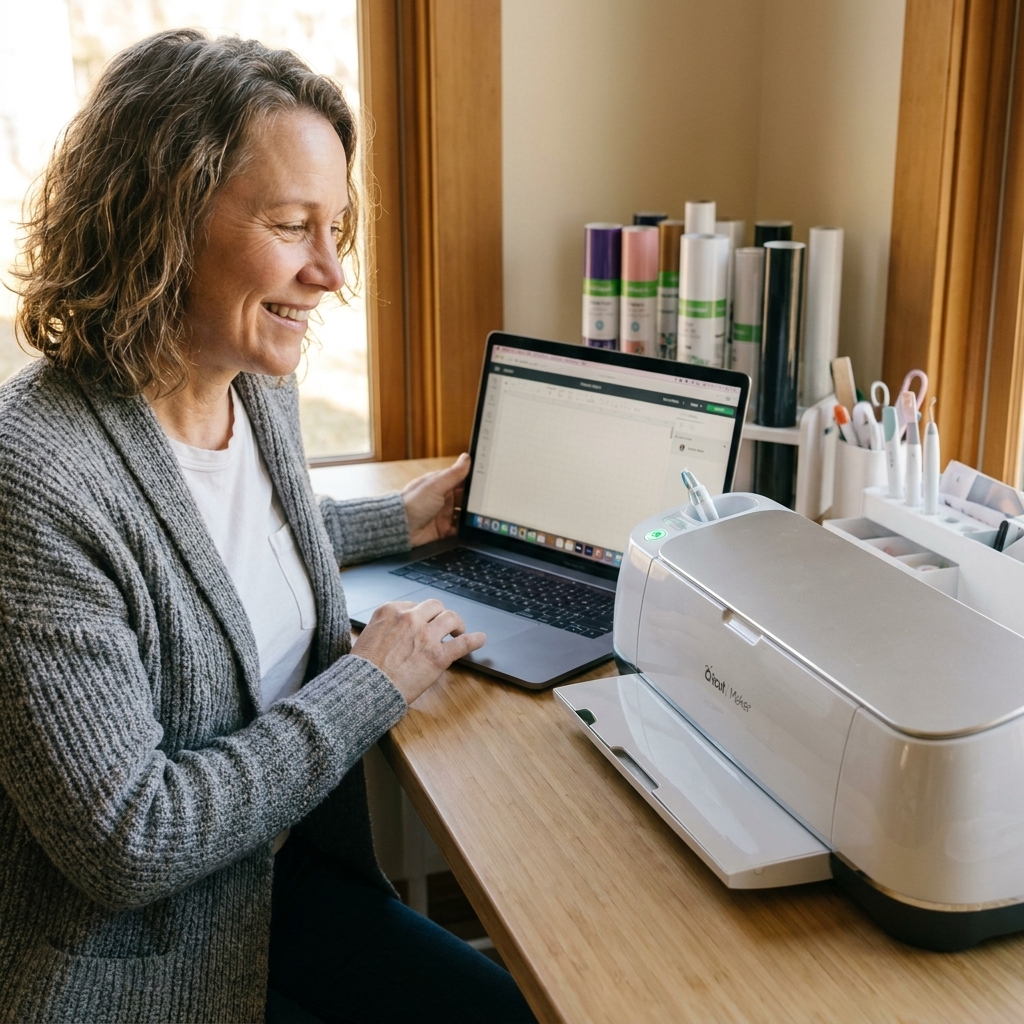
Before you start: quick reality checks
- Confirm your model and Bluetooth support. Most Maker, Explore Air, and Joy family machines support Bluetooth (including Maker, Maker 3, Explore Air 2, Explore 3, Joy, and Joy Xtra). Some older Explore and Explore One units may need a USB connection or a Bluetooth adapter depending on the exact revision. If you are unsure, check the label on the bottom of the machine and Cricut’s specs for that exact model.
- Move closer. Put your Cricut within 3 to 6 feet of your computer for pairing and the first test cut.
- Turn off other Bluetooth connections temporarily. Especially Bluetooth headphones, speakers, keyboards, and trackpads. You can turn them back on after the Cricut is stable.
- Reduce 2.4 GHz clutter if you can. Bluetooth runs in the 2.4 GHz band, just like many Wi-Fi networks. If your router supports it, switching your computer to 5 GHz Wi-Fi (or moving the router farther away) can reduce dropouts.
- Charge or plug in your Cricut. Low power can cause flaky behavior on any wireless device.
- Know the best practice. If you need a rock-solid cut for a big HTV run, USB is often the most stable option on Maker and Explore machines. Quick note: phones and tablets do not always support USB-to-machine connections the same way a computer does, so Bluetooth may be your only practical option on iOS and Android.
The fastest fix: power cycle everything
This sounds basic, but it fixes an amazing number of “it was working yesterday” Bluetooth meltdowns.
- Close Cricut Design Space completely. Do not just close the window. Fully quit it.
- Turn your Cricut off. Unplug the power cord from the wall for 20 seconds, then plug it back in.
- Restart your computer.
- Turn Cricut back on.
- Open Design Space and try again.
If it still will not connect, do not keep clicking Connect over and over. Move on to clearing pairings.
Fix pairing problems (Mac and Windows)
Step 1: Remove old or duplicate Cricut pairings
Old pairings are the number one reason a Cricut refuses to connect. Your computer thinks it is connecting to the same device, but it is actually stuck talking to a ghost record.
- On macOS: System Settings (or System Preferences) > Bluetooth > find your Cricut (often shows as “Cricut” plus numbers) > click the info icon and choose Forget This Device.
- On Windows 11/10: Settings > Bluetooth & devices > Devices > find your Cricut > choose Remove device.
Also remove any extra entries that look like duplicates. If you see two or three “Cricut” devices, remove them all.
Step 2: Put the Cricut in a clean pairing state
Cricut machines do not have a classic “pairing mode” button like headphones, but they broadcast Bluetooth when powered on and not actively connected.
- Turn the Cricut off.
- Wait 10 seconds.
- Turn it on and leave it sitting idle for a full minute.
Step 3: Pair again from computer settings
I have the best luck pairing in the operating system first, then letting Design Space find it.
- Open Bluetooth settings on your computer.
- Select the Cricut device when it appears.
- If you get a PIN prompt, try 0000. If that fails, cancel and pair again. Many Cricut connections do not use a PIN, and repeated failed PIN attempts can keep things stuck.
Once paired, open Design Space and go to the setup or machine selection screen and confirm it shows as connected.
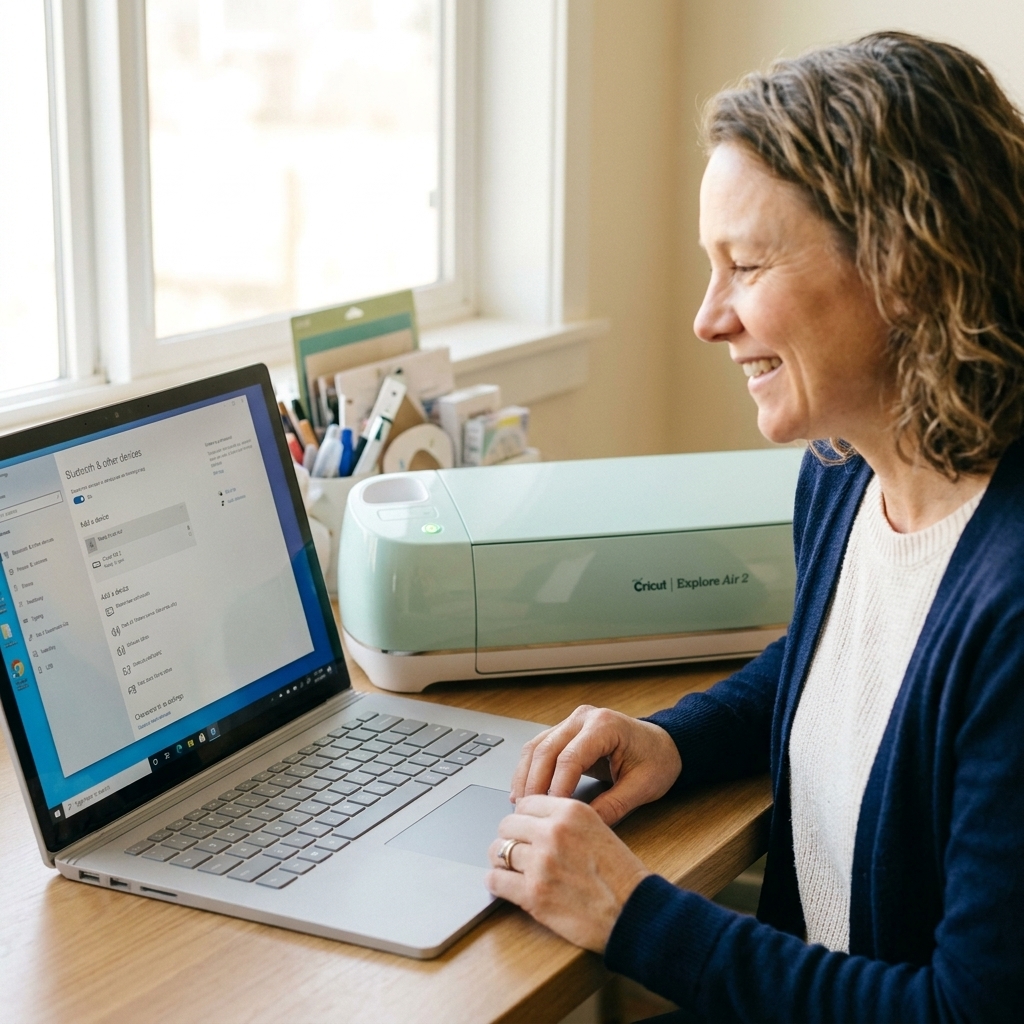
Mac fixes: Bluetooth connects, but Design Space will not see it
Check macOS permissions
Newer macOS versions are very permission-heavy. If Bluetooth is on but Design Space cannot detect the Cricut, permissions may be the issue, especially after a macOS update or a fresh Design Space install.
- Go to System Settings > Privacy & Security.
- Look for items that may apply, such as Bluetooth, Local Network, and other app access prompts. If you see Cricut Design Space, make sure it is allowed.
- If you were prompted the first time you opened Design Space and clicked “Don’t Allow,” this is where you fix it.
Restart Bluetooth and re-pair
macOS can get “stuck” even when everything looks fine. A restart and clean re-pair often snaps it back.
- Turn Bluetooth off in System Settings.
- Restart your Mac.
- Turn Bluetooth on.
- Forget the Cricut device again, then re-pair.
If your Mac uses a Bluetooth keyboard or mouse, keep a wired option handy before you start toggling.
Move away from docks and hubs
Even when you are using Bluetooth for the connection, your craft setup can still cause trouble. USB-C docks, monitors, external drives, and hubs can create interference and noise right where your computer’s Bluetooth antenna lives. During troubleshooting, move the Cricut and your computer away from docks, hubs, and big electronics for a test cut.
Windows fixes: paired, but keeps disconnecting
Turn off Bluetooth power saving
Windows loves to save power at the worst possible time. This can look like random disconnects mid-cut.
- Right-click Start > Device Manager.
- Expand Bluetooth.
- Right-click your Bluetooth adapter and open Properties.
- Look for a Power Management tab.
- Uncheck Allow the computer to turn off this device to save power.
If you do not see a Power Management tab, do not panic. Not all adapters show it. Move to the next steps.
Update or reinstall the Bluetooth driver
Especially after a Windows update, drivers can get cranky.
- Device Manager > Bluetooth > right-click your adapter > Update driver.
- If that does not help: right-click > Uninstall device, then restart your computer. Windows usually reinstalls it automatically.
Remove hidden Cricut devices
Windows can keep old Bluetooth device records even after you remove them in Settings.
- Open Device Manager.
- Click View > Show hidden devices.
- Expand Bluetooth and look for extra Cricut entries.
- Right-click and uninstall any duplicates.
When it drops mid-cut: stop the chaos
Mid-cut disconnects are the most painful because your vinyl is already on the mat and your design is halfway done. Here is how to reduce the odds, and what to do if it happens anyway.
1) Reduce interference in your craft space
- Keep the Cricut and computer close together.
- Move away from Wi-Fi routers, smart speakers, and Bluetooth speakers.
- Avoid placing the Cricut directly against a metal shelf, filing cabinet, or heat press stand.
- If you craft next to a desktop PC, try moving the Bluetooth adapter to a front USB port (or use a short USB extension) to get it out from behind the metal case.
2) Avoid sleep and screen lock during a cut
- Mac: System Settings > Lock Screen and Displays settings. Prevent sleep while plugged in during troubleshooting.
- Windows: Settings > System > Power & battery. Set sleep to “Never” during troubleshooting.
You can switch these back after you finish your project.
3) Use the one connection rule
Do not connect the same Cricut to a phone, tablet, and computer all at once. If your iPad is still paired and wakes up, it can steal the connection. Forget the Cricut on devices you are not actively using.
4) If it disconnects mid-cut, assume you will re-cut
Design Space usually cannot resume a cut perfectly after a Bluetooth dropout. Cancel the cut, unload the mat, and inspect what happened. If you re-send the job, reload your material carefully and double-check placement and alignment first, especially for Print Then Cut or anything layered.
5) If it matters, go USB for the final cut
I love Bluetooth for quick decals, but for long cuts, intricate sticker sheets, or big HTV jobs, USB is my stress-free choice. If your computer has limited ports, a good quality USB hub can help, but test it first.
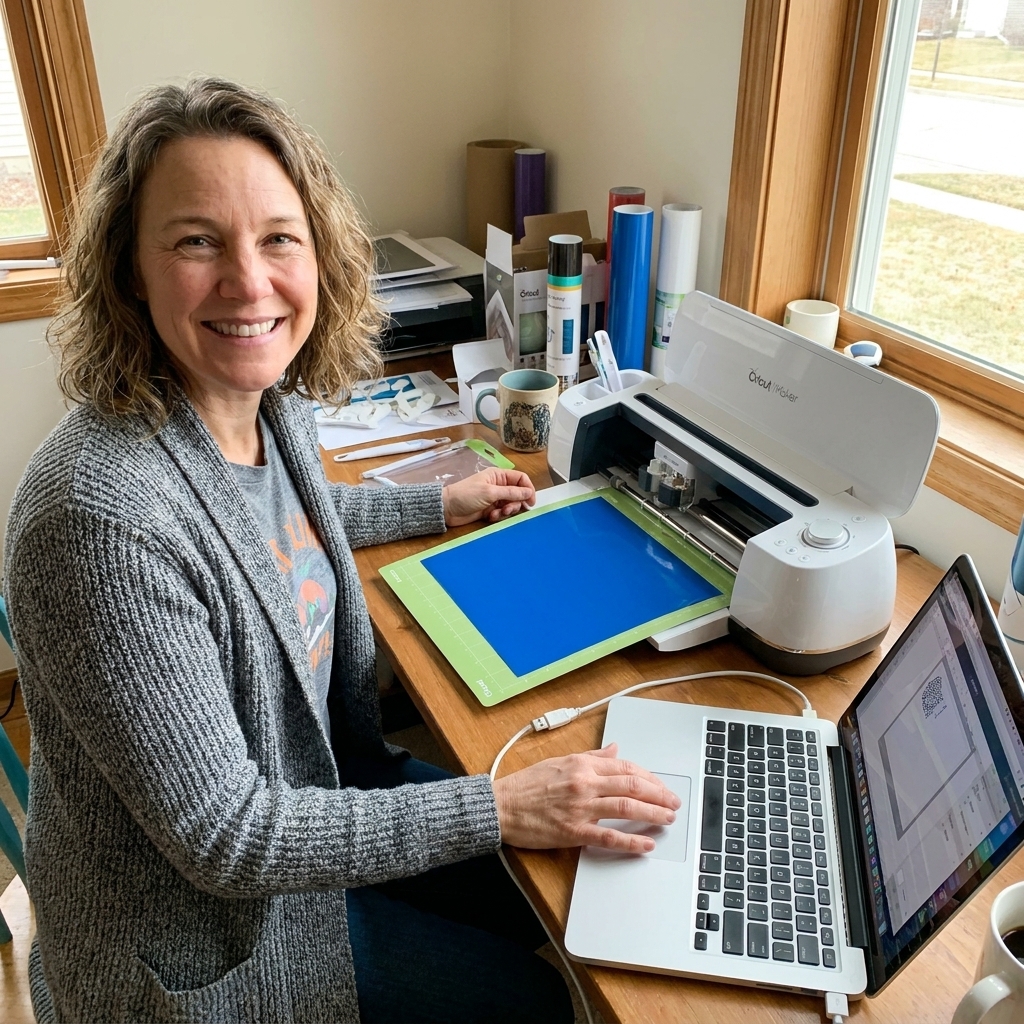
Design Space troubleshooting
Clear Design Space cache
When Design Space acts like it cannot see a device that is clearly paired, clearing the cache can help.
On Windows: Sign out of Design Space, close it, then clear the local cache folders (Cricut has official steps that may vary by version). After clearing, restart your computer and sign back in.
On Mac: Quit Design Space, then clear the application cache and relaunch.
If you are not comfortable deleting cache folders manually, uninstalling and reinstalling Design Space is the safer route.
Update Design Space
Running an older version can cause connection bugs, especially after an operating system update. Make sure you are on the latest release, then restart the computer.
Check firmware when you get a stable connection
If your Cricut connects long enough to cooperate, take the opportunity to install any firmware updates offered in Design Space. Outdated firmware can contribute to weird connection behavior.
Confirm machine selection
Inside Design Space, double-check you have the correct machine selected (Maker vs Explore family). It sounds too simple, but I have watched it cause phantom “connection” issues when the app is waiting for the wrong device type.
Phone and tablet fixes (iOS, iPadOS, Android)
If you cut from a phone or tablet, the same basics apply, but the interface is different.
- Forget the Cricut in Bluetooth settings, restart the device, then pair again.
- Toggle Bluetooth off and on before you re-pair.
- Close Design Space completely (force quit), then reopen it after pairing.
- Update your OS and the Design Space app from the App Store or Google Play.
- Turn off other nearby Bluetooth devices for the first test cut, especially earbuds.
Hard reset checklist
If you have tried the steps above and your Cricut still refuses to behave, do this full reset sequence.
- Forget the Cricut from Bluetooth settings on all devices (computer, phone, iPad).
- Uninstall Cricut Design Space.
- Restart your computer.
- Reinstall Design Space from Cricut’s official site.
- Restart again.
- Pair Bluetooth in system settings first, then open Design Space.
- Run a small test cut on copy paper or cheap vinyl before loading the good stuff.
Quick FAQ
Why does my Cricut show as paired, but Design Space says it is not connected?
Usually it is a stale pairing record, missing permissions (Mac), Windows power saving, interference, or Design Space cache issues. Remove the device, restart both machine and computer, and re-pair in the operating system settings.
My Cricut connects, then disconnects after a few minutes. What is the most common fix?
On Windows, turning off Bluetooth power saving is a big one. On both platforms, reducing interference and preventing sleep during a cut helps a lot.
Should I connect my Cricut by Bluetooth or USB?
Bluetooth is great for convenience. USB is best when you need maximum stability, especially for long cuts, Print Then Cut sessions, or anything where you would cry over wasted material. If you are cutting from a phone or tablet, Bluetooth is often the practical choice.
Can I use a Bluetooth dongle?
Yes, especially on desktops with weak built-in Bluetooth. Look for a reputable adapter and install its drivers. Positioning matters, so using a short USB extension to move the dongle away from the PC tower can improve reliability.
If you are still stuck
If you have worked through the checklist and it still will not connect, the issue may be specific to your Bluetooth hardware, macOS or Windows version, or your exact Cricut model revision.
Before you reach out to Cricut Support, jot down:
- Your Cricut model (Maker, Maker 3, Explore family, Joy family)
- Your computer type and operating system version
- Whether it fails at pairing, connecting in Design Space, or drops mid-cut
- Whether USB works reliably (if your setup supports USB)
And if you want, drop those details into your own troubleshooting notes. Future-you will thank you the next time Bluetooth decides to pick a fight five minutes before a baby shower onesie deadline.