A step-by-step recovery checklist to preserve your work, confirm what’s actually saved, check Cricut Status, and restart or update Design Space the safe way.
Maker Vinyl
Published
Cricut Design Space Freezing or Running Slow: 6 Fixes to Try First
Design Space open but lagging or freezing mid-design? Try these 6 fast fixes in order, plus what to look for if each one worked and what to do next.

Harper Davis
Harper Davis is a lifelong DIY enthusiast and cutting-machine expert who loves helping beginners conquer Cricut Design Space. With over six years of experience running a custom vinyl shop, she shares practical tutorials, material guides, and creative inspiration.
The first time Cricut Design Space froze on me mid-project, I was trying to rush out a set of custom baby onesies for my niece’s shower. I had my HTV weeded, my press preheated, and Design Space decided it wanted to spin forever. If you are staring at a laggy canvas, beach ball, or frozen panel while the app is already open, you do not need a dramatic reinstall right away. You need a clean, in-order performance reset.
Below are my six go-to fixes, in the exact order I use in my own slightly chaotic Midwest craft room. For each one, I will tell you what you should notice if it worked, and what to try next if it did not.
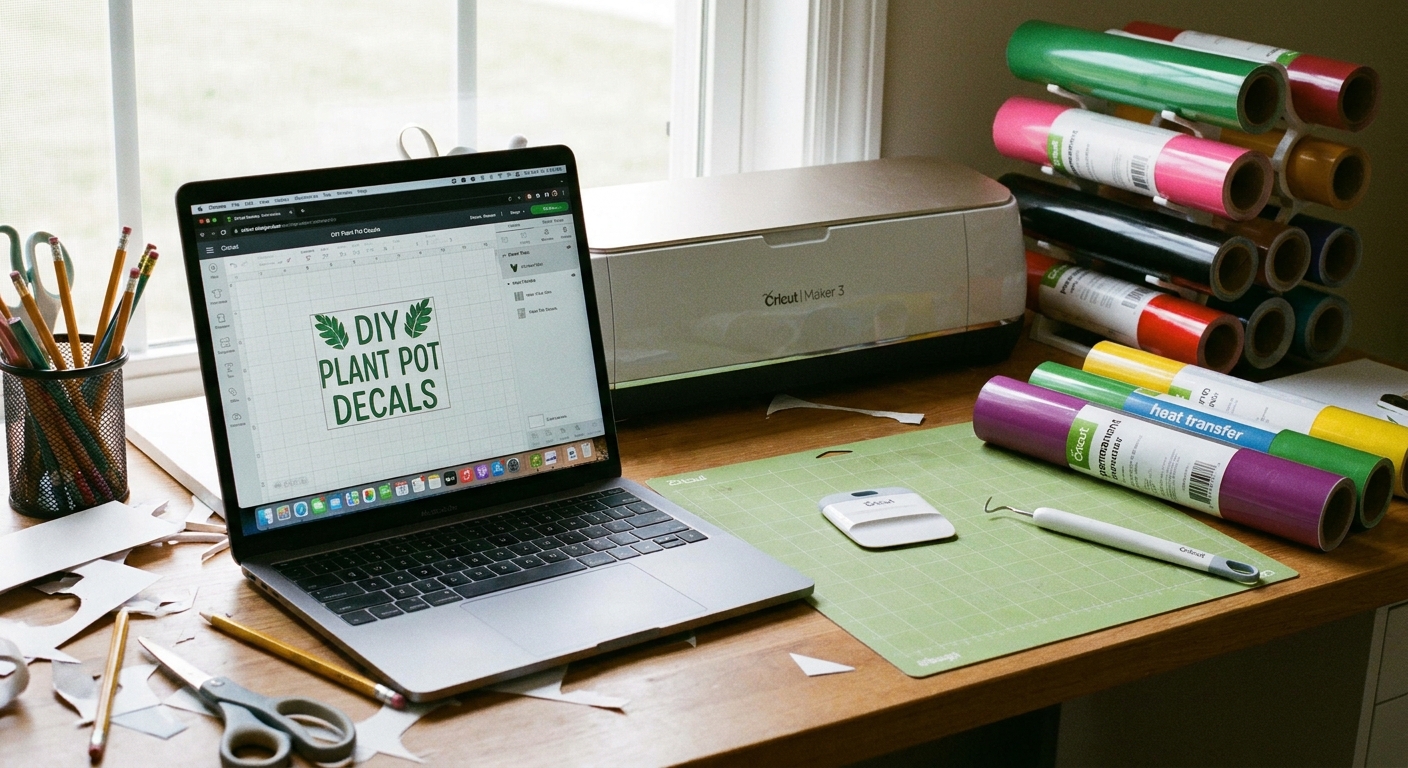
Before you start: save if you can
If Design Space is responsive enough to click Save, do it now. If it is frozen solid, do not panic, but keep the rest of these steps moving from least disruptive to most disruptive.
- Good sign: You can still click menus and your project name shows a recent saved time.
- If you cannot save: Keep going, but try not to force-close Design Space until you have attempted Fix #1 and Fix #4.
One hard-stop reminder: if you just clicked something heavy (Offset on a detailed SVG, Flatten on a big Print Then Cut layout, a big upload), give it a few minutes before you assume it is dead. Design Space can look frozen while it chews through the math. If your cursor still moves and your computer is not throwing error messages, waiting 3 to 10 minutes can sometimes save you from losing progress.
Fix #1: Close background apps (and tabs)
Design Space can get sluggish when your computer is juggling too many memory-hungry apps. Video calls, dozens of Chrome tabs, photo editors, and even cloud sync tools can quietly eat up resources.
What to do
- Windows: Press Ctrl + Shift + Esc to open Task Manager. Sort by Memory and close anything you do not need right now.
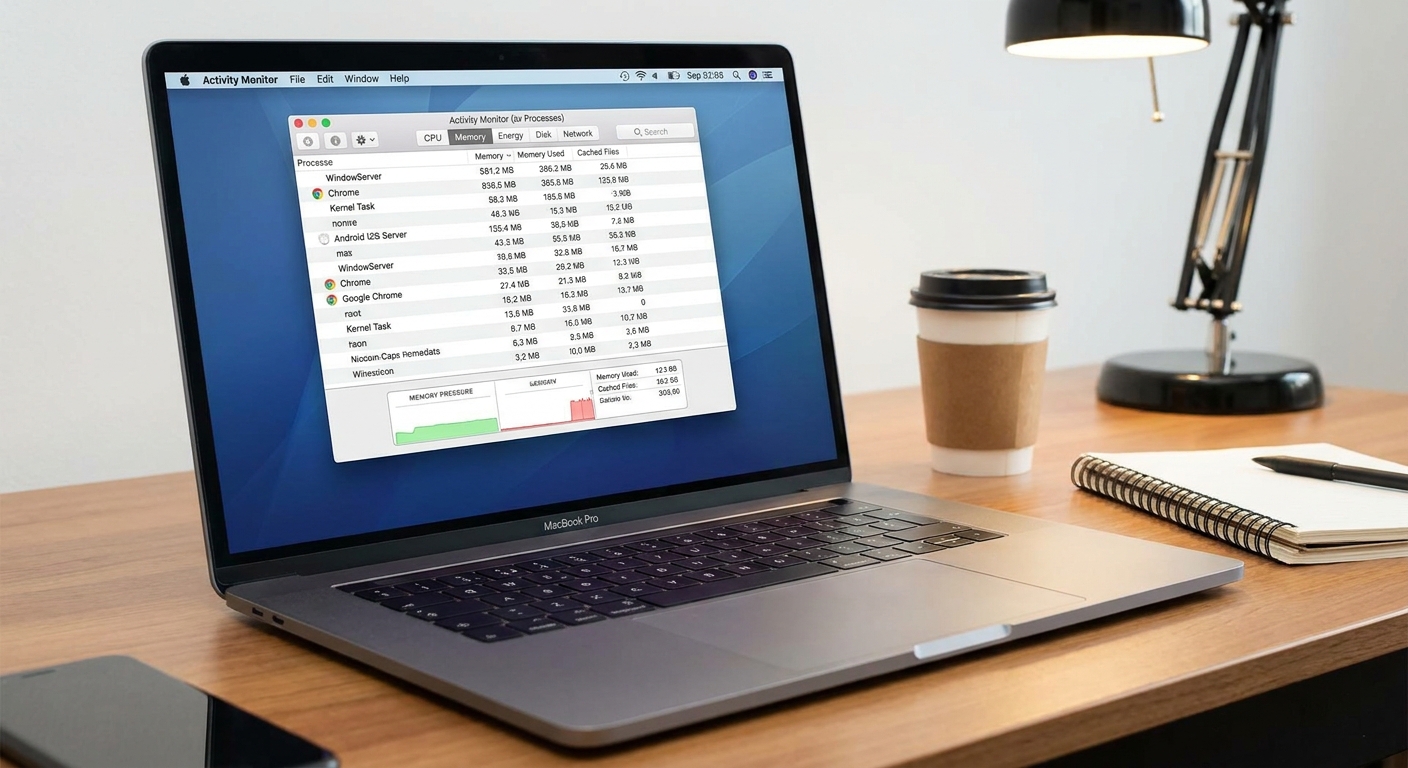
- Mac: Open Activity Monitor (Applications > Utilities). Sort by Memory and quit the biggest non-essential apps.
- Close extra browser tabs, especially video, social feeds, or anything with a lot of motion.
What you should see if it worked
- Panning and zooming on the canvas feels smoother.
- Clicking a layer or text box highlights it immediately instead of after a delay.
- Spinners stop appearing when you switch panels (Layers, Color Sync, Edit).
If it did not work, try next
Go to Fix #2 and rule out syncing and connection hiccups.
Fix #2: Try Offline mode
Quick note, because Cricut changed things a while back: Design Space on a computer runs as the desktop app now, not inside Chrome or Safari like the old days. So instead of switching to a browser version, I use this next step to figure out whether the lag is coming from syncing and online assets.
If Design Space is struggling while it tries to phone home, switching to Offline mode can make the canvas feel instantly less sticky. It is also a great way to test whether the issue is your project or your connection.
Small caveat: Offline mode helps most when you are working with projects and assets that are already downloaded, like your own uploads and anything saved for offline use. If your project relies on cloud-only images, fonts, or content that has not fully synced, offline might not improve anything.
What to do
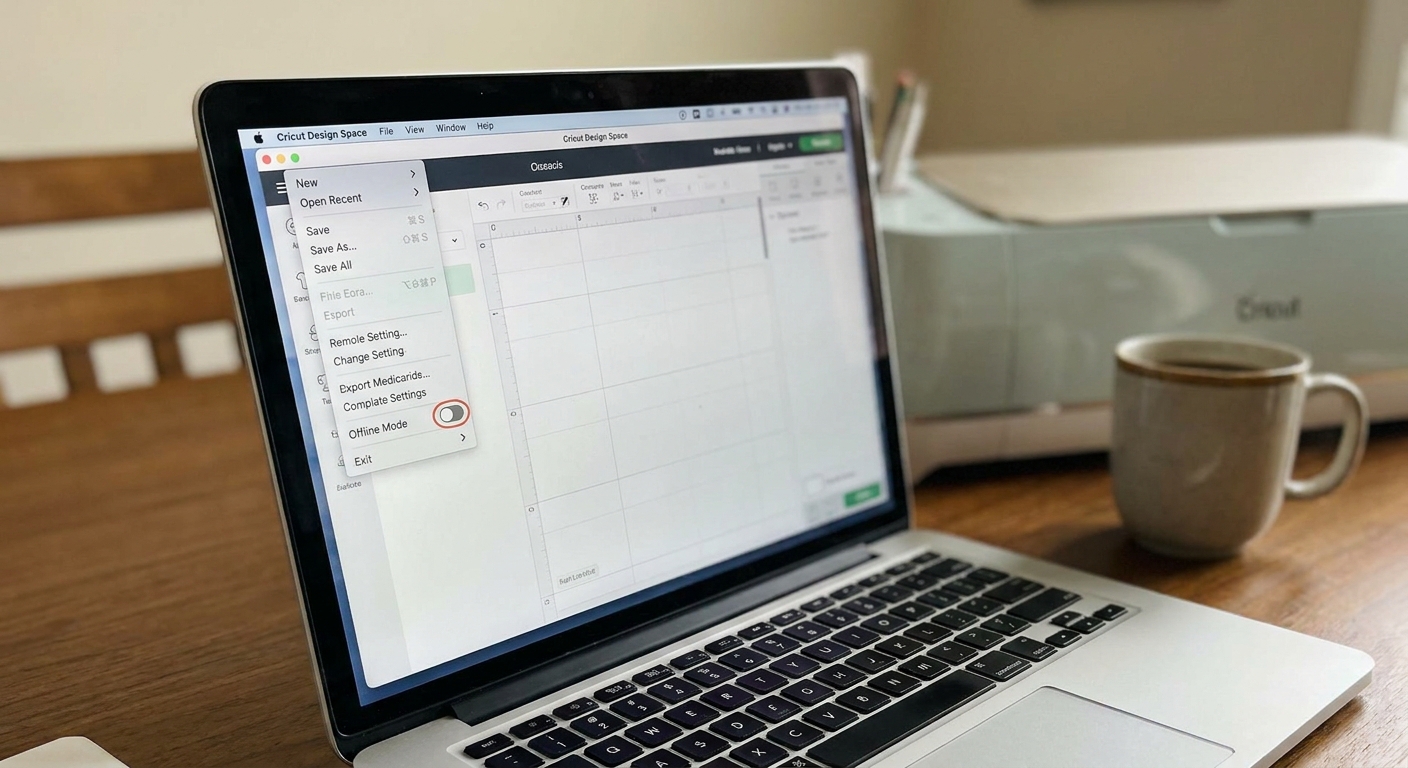
- In Design Space, click the menu (top left) and turn Offline mode on (if you see it).
- Close and reopen the project and test the exact action that was freezing (editing text, contour, weld, offset, flatten, switching to Make, and so on).
- If things improve offline, go back online and let it sync when you are not in a hurry.
What you should see if it worked
- Canvas actions respond faster, especially right after you open a project.
- Fewer spinning wheels when switching between Canvas and Make.
- Less hanging when Design Space is loading fonts, images, or thumbnails.
If it did not work, try next
Move on to Fix #3 and clear cached files, because a corrupted or overloaded cache can cause lag even when your internet is fine.
Fix #3: Clear the Design Space cache
Cache is supposed to speed things up. But when it gets too large or a file inside it gets weird, Design Space can start stalling, especially when loading fonts, images, or previously used elements.
What to do
Desktop app (most common scenario):
- Close Design Space completely first.
- Clear cache using Cricut’s recommended method for your operating system. (Cricut updates the exact folder locations occasionally, so follow their current steps.)
- Reopen Design Space and sign back in if prompted.
What you should see if it worked
- Design Space launches a bit slower the first time, then feels snappier once open.
- Your canvas responds faster when you select layers.
- Fewer random stalls when opening the font list or uploading images.
If it did not work, try next
Go to Fix #4. Even with a clean cache, an overloaded canvas can bring a strong computer to its knees.
Fix #4: Lighten a heavy canvas
This is the sneaky one. Design Space can look “frozen” when it is really busy calculating vectors, effects, and previews in the background. Some common culprits:
- Huge uploaded PNGs or complex SVGs with thousands of nodes
- Dozens (or hundreds) of tiny layers
- Multiple Offsets on detailed text
- Large Print Then Cut layouts with many high-resolution images
- Big flattened layers that still contain tons of detail underneath
What to do
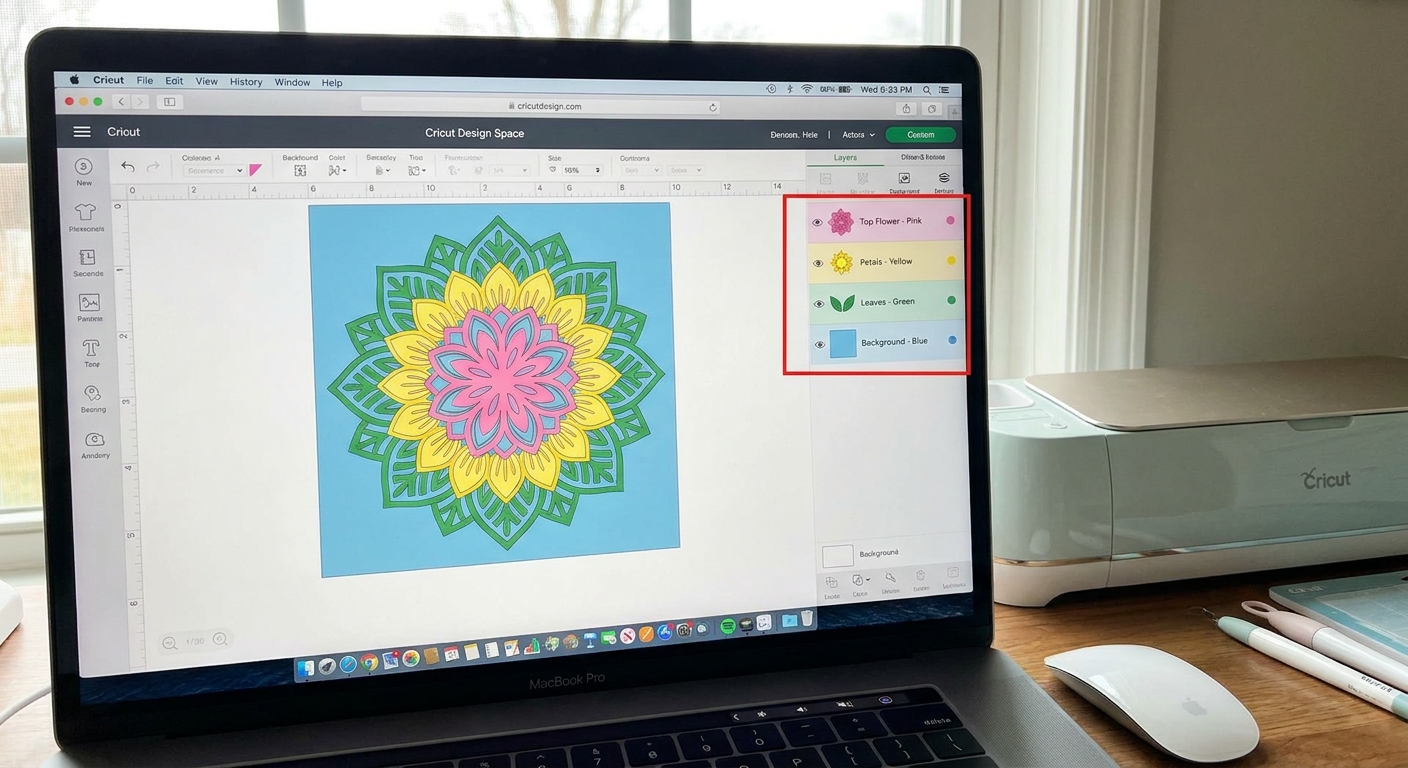
- Hide layers you are not actively editing (click the eye icon) and see if lag improves.
- Work in sections: Duplicate the project, then delete everything except one portion you are editing right now.
- Reduce effects: Temporarily remove extra Offsets or shadows, finish your sizing and placement, then add them back at the end.
- Use Flatten on purpose: Flatten is great for Print Then Cut, but it can make a busy page feel heavier while designing. If things are crawling, keep elements separate until you are ready to print and cut.
- Weld and Attach intentionally: Keep items separate while designing, then Weld or Attach only when you are ready to make.
- Simplify the file: If an SVG is insanely detailed, try exporting a simpler version from the original source if possible.
What you should see if it worked
- Zooming and moving elements stops stuttering.
- Clicking an element selects it immediately, even if the project is big.
- Design Space stops “thinking” every time you switch from Canvas to Make.
If it did not work, try next
Time for Fix #5. If the app itself is out of date, you can chase performance ghosts for hours.
Fix #5: Update Design Space (then restart)
Updates are not just new features. They often include performance patches and bug fixes, especially after larger releases.
What to do
- Desktop app: Check for updates using the app’s normal update prompt or by downloading the newest installer from Cricut’s official site.
- After updating, restart your computer. A restart clears out stuck background processes and frees up memory, which can absolutely affect Design Space.
What you should see if it worked
- Fewer freezes when performing heavy actions like Offset, Slice, or Flatten.
- Canvas loads faster and feels less “sticky.”
- You stop seeing repeated loading spinners for basic clicks.
If it did not work, try next
Go to Fix #6 and check your available memory and storage. This is the “it is not you, it is your computer” step.
Fix #6: Check RAM and disk space
Design Space performance depends heavily on two things: enough available RAM to keep everything moving, and enough free storage for temporary files and caching. If either is too low, freezing and lag show up fast.
What to do
- Check RAM usage: Use Task Manager (Windows) or Activity Monitor (Mac). If memory pressure is high or you are near max RAM, Design Space will struggle.
- Check free disk space: As a practical rule of thumb, try to keep 10 to 20 GB free if you can, especially if you do a lot of Print Then Cut or image-heavy projects.
- Quick wins: Empty your trash or recycle bin, move old videos off your desktop, uninstall unused programs, and pause cloud syncing while you work.
What you should see if it worked
- Design Space stops “locking up” when you click between panels.
- Images render more reliably instead of half-loading.
- Large projects complete actions without timing out.
If it did not work, try next
If you have tried all six fixes and Design Space is still freezing while open, test the same project on a different device if possible. Try opening it on a phone or tablet in the Cricut app, or on another computer. If it runs fine elsewhere, the issue is local to your computer. If it freezes everywhere, your file is likely too complex or slightly corrupted, and rebuilding the project in smaller chunks is usually faster than fighting it.
Bonus: Update OS and graphics drivers
If you are on Windows especially, do not overlook this. The Design Space canvas is graphics-heavy, and outdated display drivers can make everything feel laggy or glitchy even when your internet is fine.
What to do
- Windows: Run Windows Update, then check your graphics driver updates (Intel, NVIDIA, or AMD) using the manufacturer’s tool or Device Manager.
- Mac: Install the latest macOS updates your device supports.
What you should see if it worked
- Smoother zooming and panning.
- Fewer weird visual hiccups, like delayed redraws or flickering layers.
Quick checkpoint: match the symptom
- Lag when zooming or moving objects: heavy canvas, low RAM, too many background apps, outdated graphics driver
- Freeze when using Offset or Weld: complex vectors, app version bug, not enough available memory
- Slow load times for fonts and images: cache issues, syncing hiccups, not fully downloaded assets
- Spinning wheel when switching to Make: heavy project, low memory, needs restart or update
When to contact Cricut
If the freezing is happening across multiple devices on the same account, you are getting consistent error codes, or Design Space is acting weird even with simple projects, it is time to check Cricut’s status updates and reach out to Cricut Support. At that point, you are no longer troubleshooting your craft room setup. You are troubleshooting an account issue, an outage, or a bug that needs escalation.
FAQ
Should I uninstall and reinstall Design Space?
Not as a first move for “it is open but slow.” I only jump to reinstall after I have cleared cache and updated, because those solve most performance issues without resetting anything. If you do reinstall, make sure your projects are saved to the cloud so you can reopen them.
Does Print Then Cut make Design Space slower?
It can, especially with high-resolution images, lots of stickers on one page, or multiple pages worth of elements. If you are working on a big sticker sheet, try building one page at a time and duplicating after it runs smoothly.
Will faster internet fix freezing?
Sometimes it helps with loading assets and syncing, but most mid-design lag is memory and processing related. If the canvas itself is stuttering, focus on background apps, cache, project complexity, and available RAM. If the lag feels tied to loading and syncing, Offline mode is a quick way to test that.
My “no wasted vinyl” tip
If you are in the middle of a time-sensitive project and Design Space is acting up, do not keep pushing buttons while it is frozen. That is how you end up with duplicate layers, missing text, and weird grouping you have to untangle later. Pick one fix, do it fully, then test the exact action that was failing.
If you want to tell me what your project includes (Print Then Cut stickers, layered HTV, a huge SVG, lots of offset text), I can help you figure out which fix is most likely to pay off first.