Get your Cricut Maker, Explore, or Joy to pair, stay connected, and finish cuts without Bluetooth dropouts. Clear steps for macOS, Windows, and mobile.
Maker Vinyl
Updated October 18, 2026
Cricut Design Space Won’t Open or Save: Recover Work Safely
Design Space frozen, won’t open, or won’t save? Follow this calm recovery checklist to protect your project, confirm what’s saved to the cloud, and troubleshoot without risking lost edits.

Harper Davis
Harper Davis is a lifelong DIY enthusiast and cutting-machine expert who loves helping beginners conquer Cricut Design Space. With over six years of experience running a custom vinyl shop, she shares practical tutorials, material guides, and creative inspiration.
Nothing makes my stomach drop faster than a project that suddenly will not open or a Save button that just spins forever. Before you start uninstalling things or clicking around in a panic, take a breath. The goal is simple: protect any work you still might have locally, confirm what is and is not saved to your Cricut account, then troubleshoot in a way that does not accidentally overwrite a good version (for example, saving over the cloud copy while something is glitching).
This checklist is written for the moment when Design Space will not open, crashes on launch, refuses to save, or opens but your project will not load.
First: Protect your work
When Design Space is acting up, the biggest risk is turning a temporary glitch into permanent loss by overwriting the only good version. Do these quick safety moves first.
1) Do not keep reopening the same project repeatedly
If a specific project crashes Design Space when it loads, repeated attempts can sometimes make troubleshooting harder (and it can be tough to tell whether the issue is the project, the cache, or the connection). If possible, open Design Space without loading that project first, then come back to it later.
2) If Design Space is open, save a separate copy first
If the app is open and you can still click, do this immediately. Save As creates a new copy so you are not overwriting the one version that might still open.
- Open your project (if it will open).
- Desktop (Windows/Mac): Use Save As to create a new copy. Depending on your version, you may see it under a menu like File, or as an option near Save.
- iPad/iPhone: Use the in-app Save As or Save options available in Design Space (there is no File menu like desktop).
- Rename it something like ProjectName RECOVERY or ProjectName v2.
- If you can, click Make It and see whether mats generate. If it hangs here, that can be a sign the project data or one element inside it is causing trouble.
Even if you plan to fix the original, having a separate saved copy can save you if one version becomes unstable.
3) Grab quick screenshots of key settings
If you are mid-project and can still view any of this, screenshot it now: sizing, offsets, number of copies, material settings, and anything you will be mad at yourself for forgetting.
4) Avoid uninstalling (for now)
Uninstalling is sometimes needed, but it is not step one. Removing or reinstalling Design Space may delete offline downloads or cached data stored on that device, depending on your platform and how the app is set up.
Confirm what is saved
A lot of “my project disappeared” situations come down to one of these: you are signed into the wrong Cricut ID, you are looking at a different version (cloud vs offline), or the project never successfully saved.
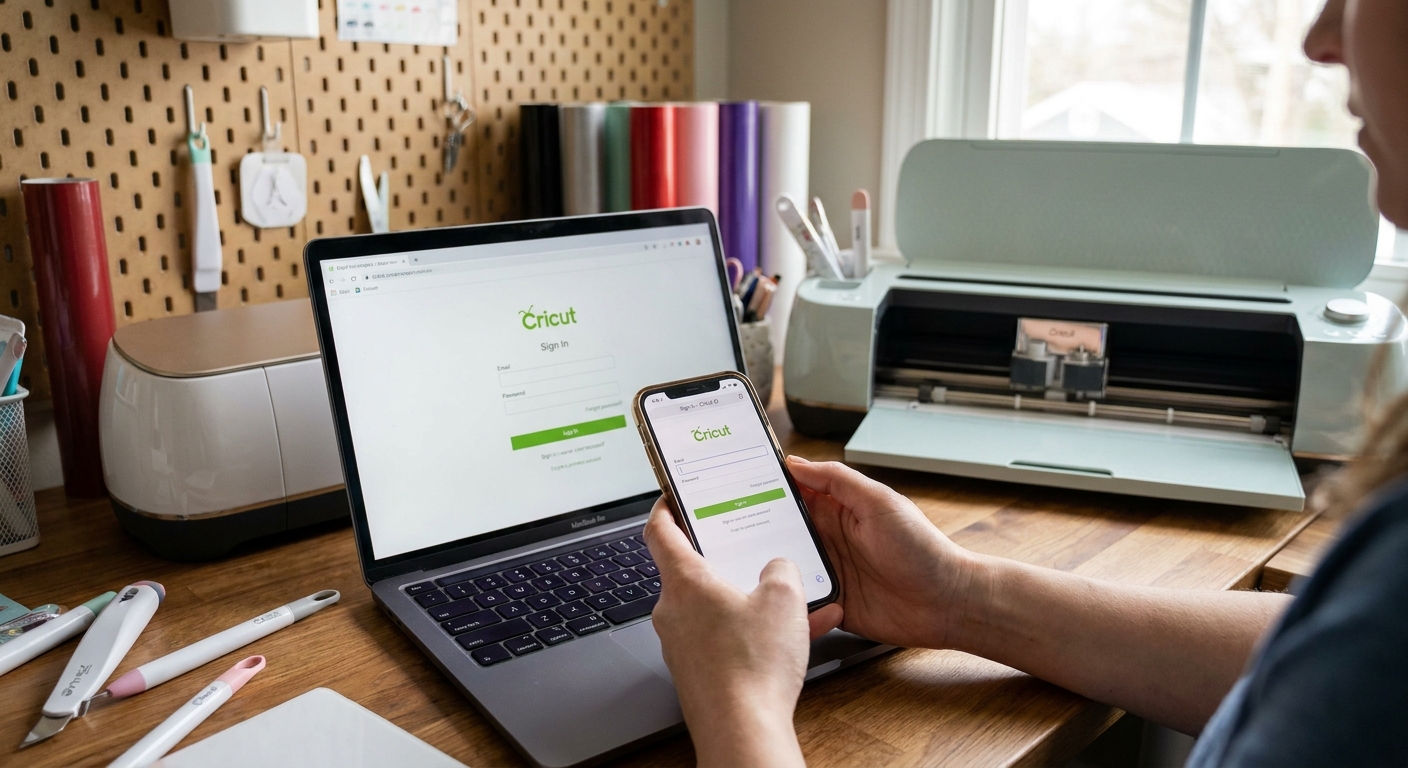
1) Confirm you are signed into the right Cricut ID
- Log out of Design Space.
- Log back in and confirm the email address in your account settings.
- If you have multiple emails (work, personal, Apple Sign In, Google Sign In), try the other one you might have used originally.
I see this most often when someone upgraded computers or switched from iPad to desktop and used a different login method without realizing it.
2) Know the cloud vs offline basics
Design Space projects are primarily cloud-based. “Offline” usually means a project (and any needed assets) was downloaded to that specific device so you can access it without internet. That offline copy does not automatically live on your other devices, and changes still need to sync when you are back online.
3) Check cloud vs offline inside My Projects
In My Projects, look for any toggle, filter, or label that indicates a project is:
- Cloud (saved to your Cricut account)
- Saved for offline use (downloaded to a specific device)
If you are not seeing an obvious filter, try switching views (grid/list) or opening the project tile and looking for an info panel. The wording can vary a bit by platform and version.
A quick reality check: offline projects are device-specific. If you saved something for offline use on your iPad, it may not be available on your desktop until it syncs, and it can be lost if the app is removed from that device.
4) Check the most recent version (if the info is available)
If you can see the project tile, look for a “Last updated” or similar timestamp on the thumbnail or in the project info (some versions make this easier to find than others). If the timestamp is older than your last crafting session, those recent edits may not have saved or synced.
Hard truth, in the kindest way: If edits were never saved (and never synced), nobody can promise they can be recovered. The rest of this guide is about maximizing your odds without making things worse.
Check for an outage
If Design Space will not open, will not load projects, or will not save, it might not be your computer at all.
1) Check Cricut Status
Go to Cricut’s official status page (often listed as Cricut Status or Status on Cricut’s site) and look for incidents affecting sign-in, cloud projects, the image library, or Design Space services. If there is an outage, the safest move is to pause troubleshooting and wait it out, especially if you are worried about sync.
2) Test on a second device
If you have an iPad or another computer, try logging into Design Space there. If the same problem happens on multiple devices, that points strongly to a service or account-side issue rather than one device.
When it will not open
If the app will not launch, gets stuck on a blank screen, or crashes immediately, work through these in order.
1) Fully close Design Space, then restart
Yes, it is basic. It also clears a surprising number of launch loops.
- Windows: Use Task Manager to end Cricut Design Space tasks, then reboot.
- Mac: Force Quit Design Space, then restart.
- iOS/iPadOS: Swipe the app closed, then restart the device.
2) Update Design Space carefully
If you can open your app store or Cricut’s download page, check whether an update is available.
- If Design Space started failing right after an update, try the cache-clear step below before you reinstall.
- If you are prompted to update firmware for your machine, you can usually skip it for now while you stabilize the app and regain access to your projects, unless Cricut Support instructs you to update to resolve a specific connection issue.
3) Clear cache (desktop) or clear storage (mobile)
Corrupted cache is a common culprit for crashing, blank screens, and projects that refuse to load.
- Windows/Mac: Use Cricut’s official help article for Clear application cache (their wording may vary slightly by platform). Clearing cache removes temporary files and may remove offline downloads stored on that computer.
- iPad/iPhone: Removing the app, offloading it, or clearing its storage may remove offline-saved projects on that device. If offline projects matter to you, confirm what is safely in the cloud first.
After clearing cache or storage, restart your device and try launching again.
4) Check OS updates and disk space
- Make sure your operating system is up to date.
- Confirm you have free disk space. Design Space needs room to create temporary files.
If your drive is nearly full, Design Space may open but fail when saving or generating mats.
When it will not save
Save issues usually fall into three buckets: connection problems, sync or account problems, or a project element that is causing errors.
1) Check your connection
Do not just check that Wi-Fi is “on.” Try loading a couple normal websites, or switch briefly to a different connection (like a phone hotspot) to test whether your network is blocking Cricut services.
2) Use Save As
If Save will not complete, Save As to a new name can sometimes bypass a stuck save state by creating a clean version.
- Name it clearly: ProjectName v2 or ProjectName RECOVERY.
- If the original seems stuck, avoid forcing it to save again.
3) Simplify to find the problem element
If one object is causing the save to fail, you can sometimes save by narrowing it down.
- Save a separate copy first.
- Only do the steps below in the duplicate, not the only version you care about.
- In the copy, hide or delete about half the layers, then try saving.
- If it saves, the problem is likely in the part you removed. Undo and narrow it down.
This is especially helpful if you recently added a complex shape, a large offset, print then cut elements, or a huge number of layers.
4) Give sync time to finish
If you switch between devices, give cloud sync time to complete before closing the app. I wait until the project thumbnail updates and the last updated time (if shown) looks correct.
When a project will not open
If Design Space opens but one project crashes, hangs on loading, or opens with missing elements, use this approach.
1) Open a different project first
This tells you whether Design Space is generally functioning. If other projects open normally, you are likely dealing with one unstable project or a specific element inside it.
2) Try another device
If the project is saved to the cloud, try opening it on another computer, an iPad, or an iPhone. Sometimes a device-specific glitch or cache issue prevents loading. If it opens elsewhere, immediately Save As a fresh copy and work from that version.
3) If it opens blank, check hidden layers and off-canvas items
I have had projects “open blank” because everything was nudged far off the visible canvas or layers were hidden. Use zoom and the Layers panel to select an item, then use alignment tools like Center to bring it back into view.
4) Do not overwrite the only good version
If the project opens on one device but not the other, do not keep hitting Save on the broken device. Work from the device that opens it, then create a new duplicate for future edits.
My safe fix order
If you want the calm, least-risky order of operations, here is what I do in my own shop when Design Space is misbehaving:
- Check Cricut Status.
- Confirm the correct account login.
- Save a separate copy (if the project will open anywhere) and screenshot key settings.
- Restart your device.
- Clear cache (desktop) or clear app storage (mobile) after confirming what is in the cloud.
- Update Design Space and your OS.
- Try a different network briefly to test connection issues.
- Only then consider uninstall and reinstall, and only after you have confirmed which projects are cloud-saved.
If you must reinstall
Reinstalling can fix stubborn launch issues, but I treat it as a last resort because it may remove offline downloads stored on that device.
Before you uninstall
- Log into Design Space (on any device that works) and confirm the project is in My Projects and appears to be current (check the thumbnail timestamp or project info if your version shows it).
- If you use offline projects, connect to stable internet and give it time to sync.
- If Design Space is completely unusable on that device, assume offline-only edits on that device may be at risk.
Reinstall checklist
- Uninstall Design Space.
- Restart your device.
- Install the latest official version from Cricut.
- Log in and open a simple project first (not your problem project).
- Then try the problem project, and immediately Save As a new copy if it opens.
Network blockers to check
If sign-in, loading, or saving keeps failing and it feels random, your network environment might be the real issue.
- VPNs: Turn off your VPN temporarily and test again.
- Work or school networks: Corporate firewalls and web filters can block Cricut services. If you can, test on a home network or phone hotspot.
- Security software: Some antivirus or web protection tools interfere with sign-in or cloud syncing. Try disabling it briefly to test, then add Cricut as an allowed app if that is the cause.
- Computer user profiles: If you are on a shared computer, try a different user profile with normal permissions. Occasionally, limited permissions or storage rules can interfere with caching and saves.
Contact Support
If you have tried the safe steps and still cannot open or save, it is time to contact Cricut Support. The more specific you can be, the faster this goes.
Gather this first
- Your device type (Windows, Mac, iPad) and OS version
- Design Space version number
- Whether the issue is won’t open, won’t save, or project won’t load
- The project name(s) affected
- Approximate time you last successfully saved
- Photos or screen recordings of the error or behavior
Be clear about whether the project was cloud-saved and whether you were working offline. Support may be able to help diagnose sync issues, but they cannot guarantee recovery of unsaved edits.
Quick FAQ
Can I recover an unsaved Design Space project?
Sometimes you get lucky if the app is still open in the background or if another device has a synced version, but there is no reliable “undo my crash” recovery tool. That is why saving a separate version early matters so much.
Why does Design Space say it saved, but my changes are gone?
Most often it is a sync issue. The local session looked fine, but the cloud version did not update. Check the project timestamp (if shown), test opening it on a second device, and avoid overwriting an older cloud copy from the device that is acting up.
Should I keep working offline if saving is failing?
If saving is failing while you are online, switching to offline mode usually does not fix the underlying problem and can make syncing messier later. I recommend stabilizing the app and connection first, then resuming work.
Design Space opens, but it is extremely slow. Is that related?
It can be. Low disk space, an overloaded project, or cache issues can cause slowdowns that look like freezing. Try clearing cache, closing other heavy programs, and testing save behavior on a smaller duplicate project.
One habit that helps
I know this article is about recovery, but here is the one habit that has saved me the most heartache: when I start a project I care about, I immediately use Save As and create a versioned file name like Shirt Front v1, v2, v3. If something goes sideways, I lose minutes, not hours.
If you are comfortable sharing, leave a comment with what device you are using and what exactly happens when you try to open or save. Odds are good someone else has hit the same snag, and it helps narrow down the safest next step.