A beginner step-by-step for downloading free SVGs, extracting ZIP files, and importing the right file into Cricut Design Space without weird cut lines or upl...
Maker Vinyl
Updated October 17, 2026
Why Your Free SVG Won’t Upload to Cricut Design Space
Free SVG not uploading in Cricut Design Space? Fix the 5 most common errors fast: wrong file type, ZIP issues, corrupted downloads, hidden layers, and unsupported SVG features.

Harper Davis
Harper Davis is a lifelong DIY enthusiast and cutting-machine expert who loves helping beginners conquer Cricut Design Space. With over six years of experience running a custom vinyl shop, she shares practical tutorials, material guides, and creative inspiration.
If you have ever downloaded a “free SVG,” marched confidently into Cricut Design Space, tapped Upload, and then… nothing, you are in very good company. I started cutting vinyl out of pure frustration, and I learned the hard way that most “SVG upload problems” are not actually your Cricut being dramatic. They are usually one small file issue that Design Space is picky about.
This guide walks through the five most common Cricut SVG upload errors I see (and the exact fixes). We will get that file into Design Space and back to making cute things, not error messages.
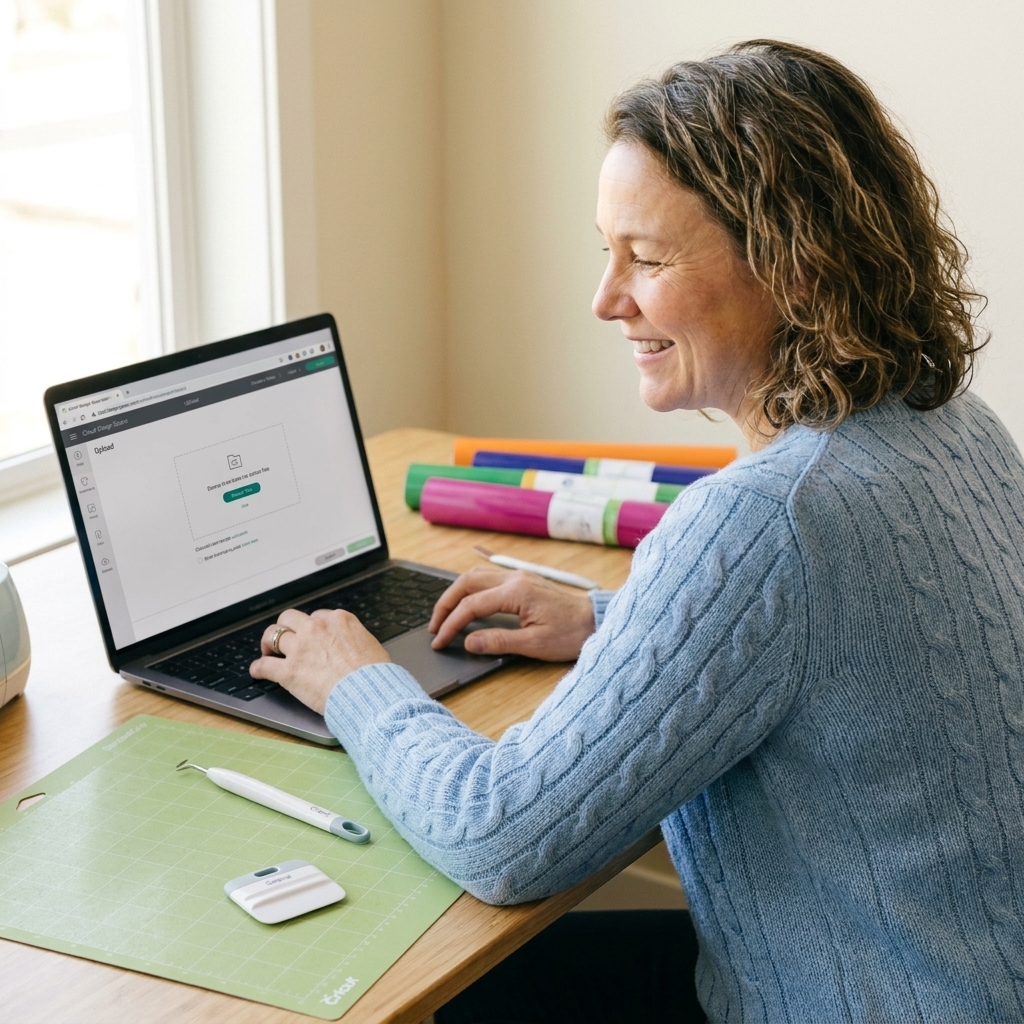
First: Quick Checklist
Do these three checks first. They solve a surprising number of mysterious upload fails.
- Make sure you are uploading the SVG file itself (it should end in .svg).
- Unzip the download if it arrived as a ZIP folder.
- Restart Design Space (and if it is being extra stubborn, restart your device). A quick reset fixes a lot of weird freezing.
If you still cannot upload, jump to the error that matches what you are seeing.
Error #1: You Downloaded a ZIP
What it looks like: Design Space will not let you select the file, or the download shows up as a ZIP folder instead of an SVG you can choose.
Why it happens: Most free SVG bundles download as a .zip file (a compressed folder). Cricut Design Space cannot upload a ZIP directly.
How to fix it
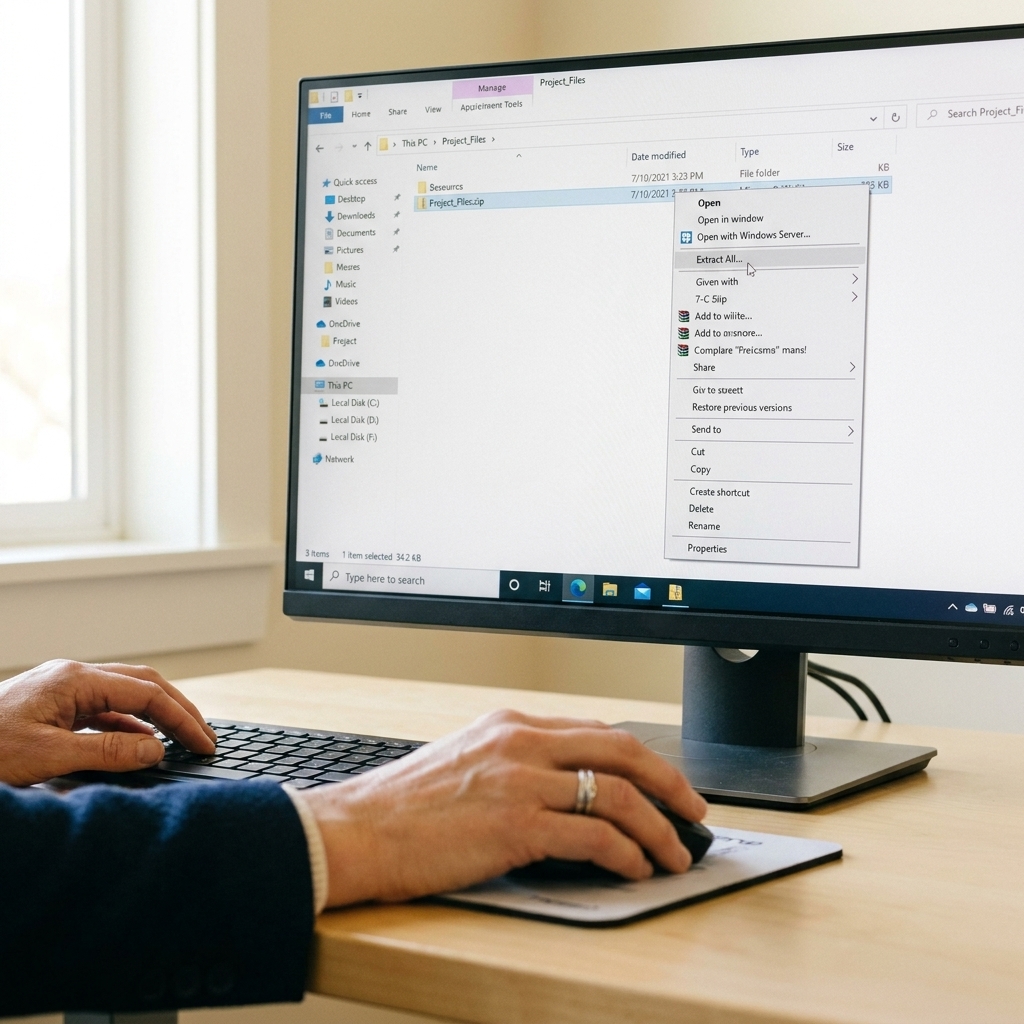
- On Windows: Right-click the ZIP file → Extract All → choose a folder → Extract.
- On Mac: Double-click the ZIP file to unzip it automatically.
- Open the extracted folder and look for the file ending in .svg.
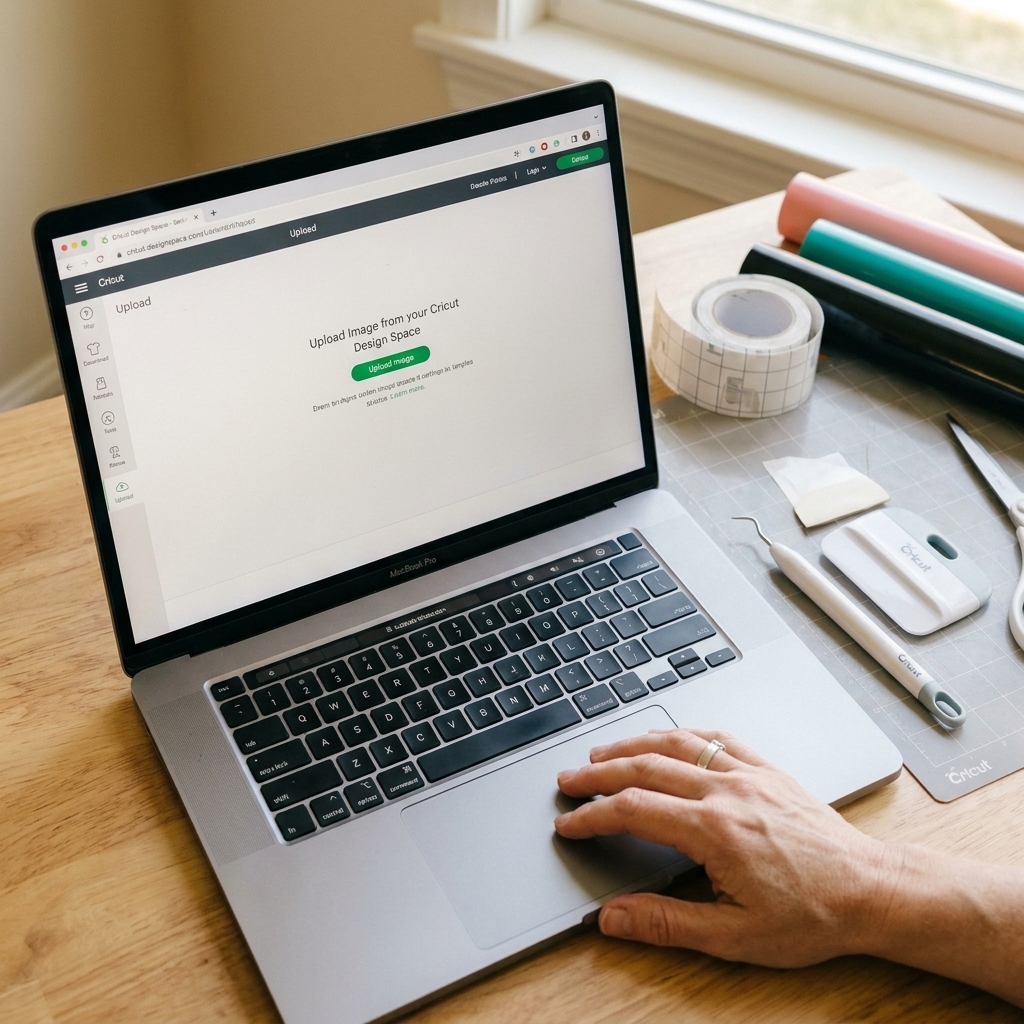
- Upload that SVG into Design Space.
Harper tip: If you see files like .DXF, .PNG, or .JPG but no SVG, the “free SVG” download might not include one. In that case, you can still use a PNG as Print Then Cut, but it will not behave like a true cut file.
Error #2: Wrong File Type
What it looks like: Design Space throws an “unsupported file type” message, or the file you downloaded says “SVG” on the website but ends in something else on your computer.
Why it happens: Sometimes the download is actually a PNG renamed as SVG, an HTML file (yes, really), or a format that needs converting first.
How to fix it
- Check the file extension: it must end in .svg.
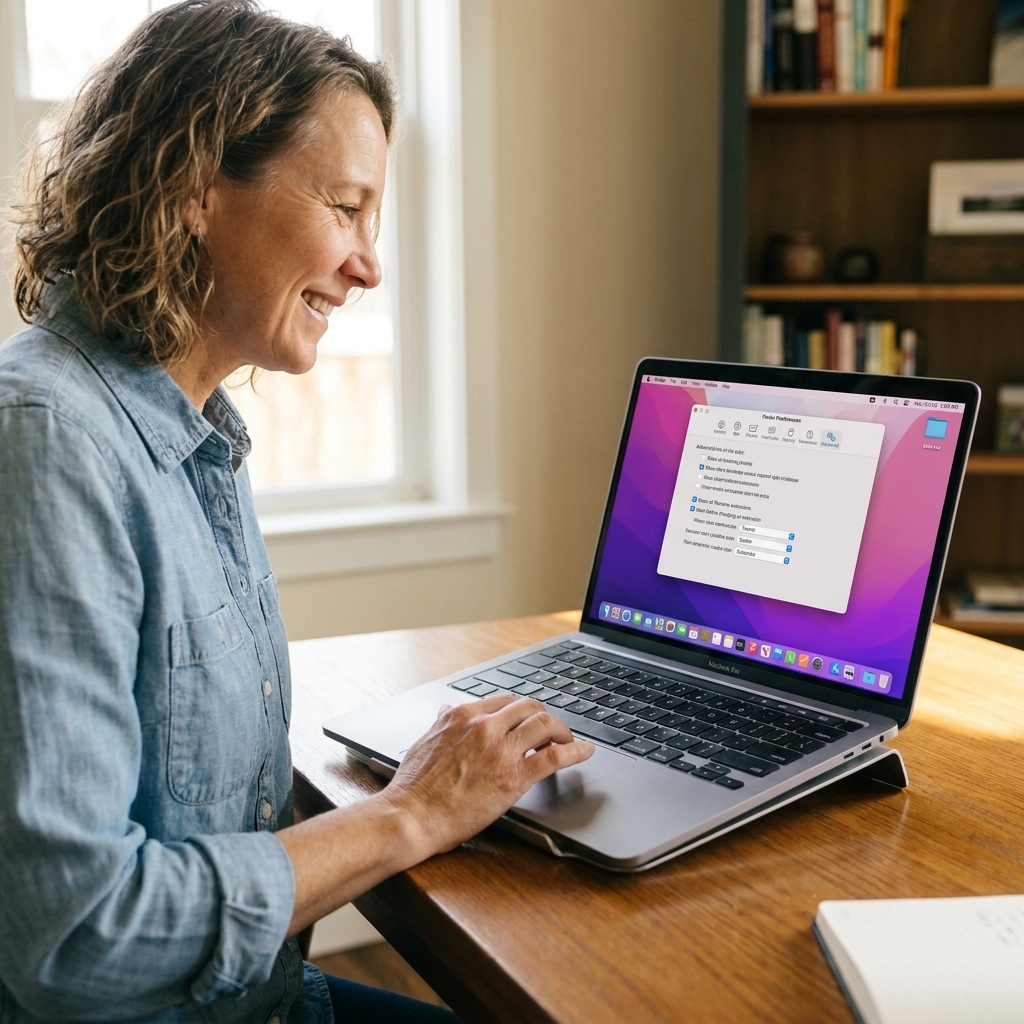
- Turn on file extensions so you can see them clearly:
- Windows 11: File Explorer → View → Show → File name extensions
- Mac: Finder → Settings → Advanced → show all filename extensions
- If the file ends in .eps or .ai, you will typically need to convert it to SVG in a vector program before Design Space can use it.
- If the file ends in .dxf, it may import, but it often comes in differently than an SVG (think: fewer layer details and less predictable behavior). If you want it to cut like the designer intended, ask for the SVG version.
- If the “SVG” you downloaded opens as a webpage (.html) or looks like an ad page, do not upload it. Delete it and go back to the original creator’s download link.
If all you have is a PNG: Upload it as an image and use Print Then Cut, or use a vector design program to trace it into clean cut lines (results vary depending on the artwork quality).
Error #3: “Upload Failed”
What it looks like: You get an “Upload failed” message, the spinner spins forever, or the SVG imports as a blank square.
Why it happens: The file did not fully download, your browser blocked part of it, or it got altered during download. This happens a lot with spotty Wi-Fi, aggressive ad blockers, or downloads from sketchy pop-up pages.
How to fix it (my go-to order)
- Delete the file you downloaded.
- Re-download it from the original source page (avoid “mirror” download buttons).
- Try a different browser for the download (Chrome or Edge on desktop is my usual fix).
- Move the file somewhere simple, like Desktop, before uploading. Cloud-synced folders and long folder paths can sometimes cause permission issues or “online-only” file weirdness.
- Rename the file to something basic: flower-cut-file.svg (no emojis, no extra dots, no special characters).
If you are using the Design Space mobile app: Try uploading from a desktop computer. The mobile app is improving, but it is still more temperamental with some SVGs.
Error #4: It Uploads, But It’s a Mess
What it looks like: The design imports, but layers are missing, everything is grouped strangely, there are random rectangles, or the whole thing is one big shape.
Why it happens: A lot of free SVGs are made in software that allows effects Cricut does not love, like clipping masks, complex compound paths, embedded raster images, patterns, or text that was not converted to paths.
How to fix it
- Try a “clean” version of the file if the designer offers one (often labeled “Cricut compatible”).
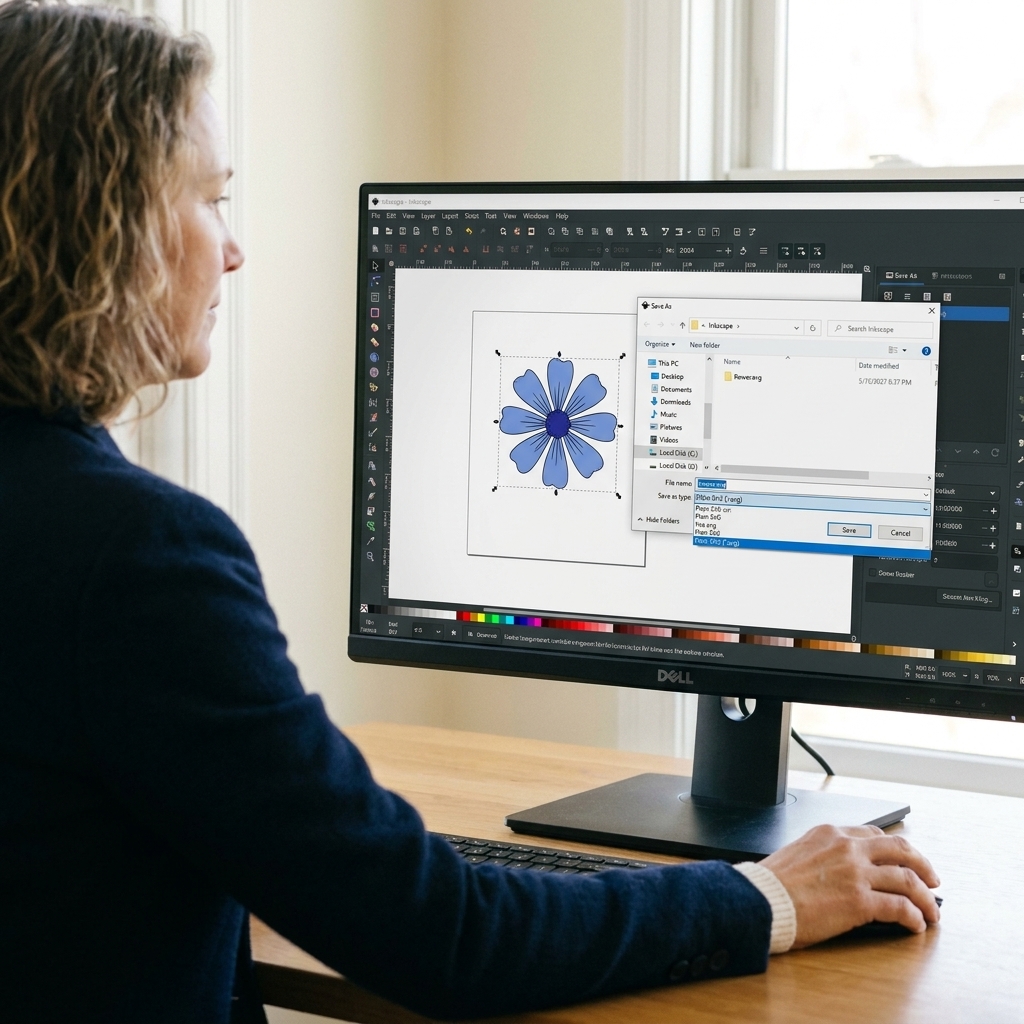
- Open the SVG in a vector editor (Inkscape is free) and simplify it:
- Convert text to paths
- Flatten or release clipping masks
- Remove stray shapes outside the artboard
- Convert strokes to paths if the design relies on stroke width
- Re-save as Plain SVG (in Inkscape, “Plain SVG” typically plays nicer).
Harper tip: Not all compound paths are “bad.” Some are exactly how a cutout is supposed to work. The problem is when a file relies on effects (like masks) that Design Space interprets differently. Random boxes are often from a hidden background layer or a clipping rectangle that came along for the ride. In a good cut file, the background should be removed, not hidden.
Error #5: Design Space Freezes
What it looks like: The upload window stops responding, Design Space becomes sluggish, or the app closes when you try to import.
Why it happens: Usually one of these:
- The SVG is huge or overly complex (thousands of nodes)
- Design Space cache is acting up
- Your device is low on memory or running too many things at once
How to fix it
- Close Design Space and restart your device (not glamorous, but it works).
- Update Design Space and your device operating system. Upload glitches love an outdated app.
- Clear Design Space cache: sign out, quit the app completely, clear the application cache (Cricut’s help docs list the exact steps for Windows and Mac), then reopen and sign back in.
- If you are on mobile: cache fixes are often simplest as uninstall and reinstall (then sign back in), especially if the app is crashing.
- Reduce file complexity in a vector editor by simplifying paths or removing tiny details you do not need.
- Try uploading from desktop if you are on iPad or phone.
My realism check: Some “free SVGs” are basically designed to look pretty on screen, not cut cleanly. If your file has a ton of distress texture, watercolor edges, or micro-detail, it may need simplification to cut well even after it uploads.
Is Your SVG Cut-Ready?
Before you waste vinyl, here is what I look for in a good SVG:
- Clean layers (not hundreds of tiny pieces unless it is meant to be intricate)
- No hidden background rectangles
- All text converted to paths (so fonts do not break)
- Reasonable detail level for your material (glitter HTV and tiny text do not get along)
Font clue to watch for: If an SVG uses a font you do not have and the text is not converted to paths, you might see missing letters, substituted fonts, or text that shifts. A solid cut file either includes the font info clearly or converts text to paths before sharing.
After upload, click into the design and use Contour or Weld only if you understand what they will change. If you are unsure, duplicate the layer first so you have a backup.
FAQ
Why does my SVG upload as a black box in Design Space?
That is usually a clipping mask, an invisible background shape, or an embedded image that Design Space is interpreting oddly. Re-save the file as a Plain SVG in a vector editor, and remove any background rectangles.
Can I convert a PNG to an SVG for Cricut?
Yes, but quality depends on the artwork. Simple, high-contrast images convert best. You can trace it in a vector program like Inkscape, then clean up nodes and save as Plain SVG. For photos or watercolor style graphics, you will get better results using Print Then Cut with the PNG.
Why does Design Space say my SVG is too large?
You might see wording like “too large” or “too complex,” and it often comes down to the same culprit: the file has an enormous canvas, hidden elements way off the artboard, or a truly wild number of nodes. Open the SVG in a vector editor and check for stray shapes far off the canvas, then resize the document to content and re-save.
My SVG uploaded, but it will not cut the way I expect. What now?
Go to the Canvas and click Ungroup if needed, then use the Layers panel to see what imported. If everything is one layer, the file may have been flattened before it was shared. If it is hundreds of tiny pieces, simplify the design or choose a less distressed version.
A Simple Upload Routine
When I am downloading free files, this is the routine that keeps my craft room from turning into a tiny vinyl graveyard:
- Download and unzip
- Confirm the file ends in .svg
- Rename it simply
- Upload in Design Space on desktop when possible
- Check layers and do a quick sanity test on the mat preview before cutting
If you are still stuck, use the exact error text you see in Design Space to pinpoint the right fix above. One tiny clue usually points to the real problem fast.